
[[{“value”:”
If you’re a large business or enterprise-grade business looking for the best data recovery software, Ontrack EasyRecovery can be a good choice. With more than 40 years of experience, the platform claims a million customers with 120 petabytes of recovered data.
However, instead of taking the provider’s word for it, we’ve put Ontrack EasyRecovery through tests of our own to see if it lives up to its reputation. Read on as we discuss Ontrack EasyRecovery in detail, including its best features, pricing, installation, and in-use experience.
Ontrack EasyRecovery: Plans and pricing
Ontrack EasyRecovery does not offer a unified pricing page where you can view the prices of the different products at a glance. You’ll have to manually click on the “Buy Now” button on various product pages to actually see how much the products cost, which can be a bit of a buzzkill.
That said, we found the pricing pretty competitive and at par with other data recovery software around. For example, its Home version costs $59.99 for a year for Windows and $69.99 for Mac. Similarly, the Professional version costs $99.99, while the Premium plan comes at $129.99. The Technician version costs $199 and covers 3 devices, and lastly, the Toolkit costs $299 for up to three machines.
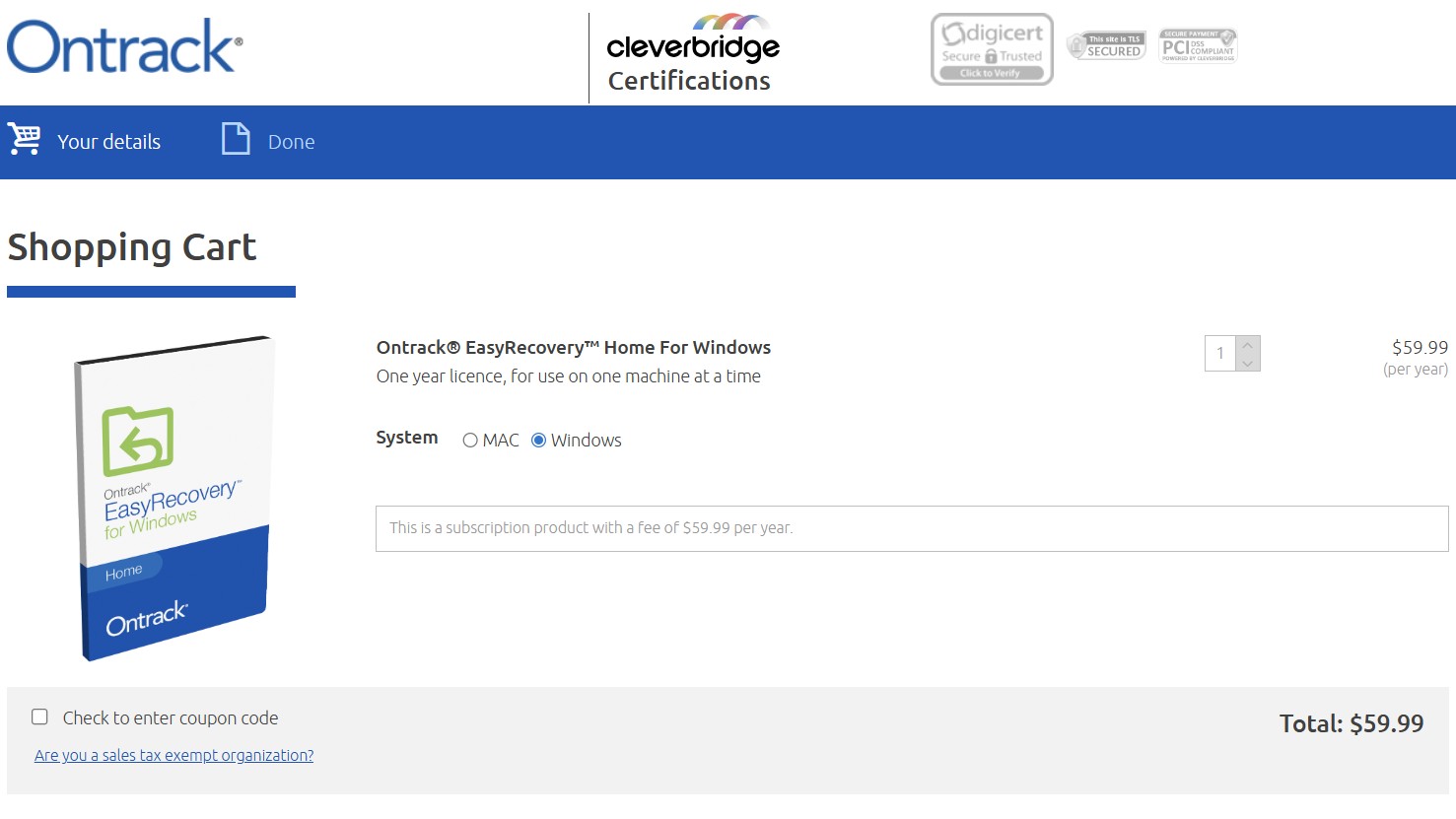
Although Ontrack EasyRecovery offers a free plan, it is one of the most limited versions we have seen across the board. You can recover up to 1GB of data, but with an upper cap of 25MB per file. This makes it impossible to recover any file more than 25MB using the free version.
Ontrack EasyRecovery: Features
On the face of it, Ontrack EasyRecovery may not appear as feature-rich as some competing data recovery tools. However, it stands out as one of the few platforms designed to meet the needs of enterprise-grade users as well as government organizations. This level of adoption speaks volumes about its reliability and advanced recovery capabilities.
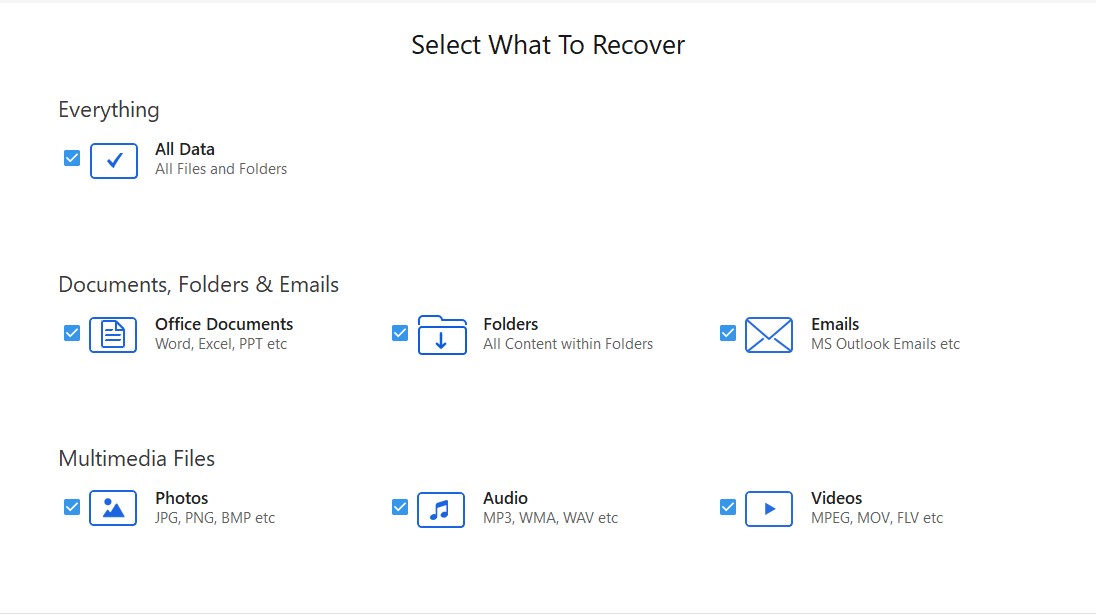
EasyRecovery is available for both Windows and Mac and supports FAT, NTFS, or exFAT file systems, as well as HFS, HFS+, and APFS formatted drives. The best part about it is that you can save the results of your scan and resume the recovery process later.
The provider offers various products catering to a wide range of users – from home users trying to recover deleted, trashed, or virus-infected files to professional users recovering multiple data loss events. EasyRecovery can create disk images, which lets you work on a copy of the drive instead of risking further damage to the original.
Additionally, you can also monitor hard drive health and recover data from CDs and DVDs. There’s also a Premium version, which can repair corrupt photos and videos and clone HDDs and SSDs, enabling seamless migration or backup of entire drives.
Moving up, the Enterprise version is an on-premise technician plan, which can rebuild broken RAIDs and volumes and create virtual RAIDs. This comes in handy in complex scenarios where RAID configurations are broken or disks are missing.
Lastly, there’s the Technician version, which offers licenses for commercial use and works on Windows, Mac, and Linux (only this version) devices.
Scanning
The provider offers two scanning modes: full scan and deep scan. However, the actual scanning process is pretty slow. It took me more than half an hour to scan a 500 GB external hard disk with a quick scan. A deep scan can take 4 to 5 hours, depending on the scan location and complexity of file types.
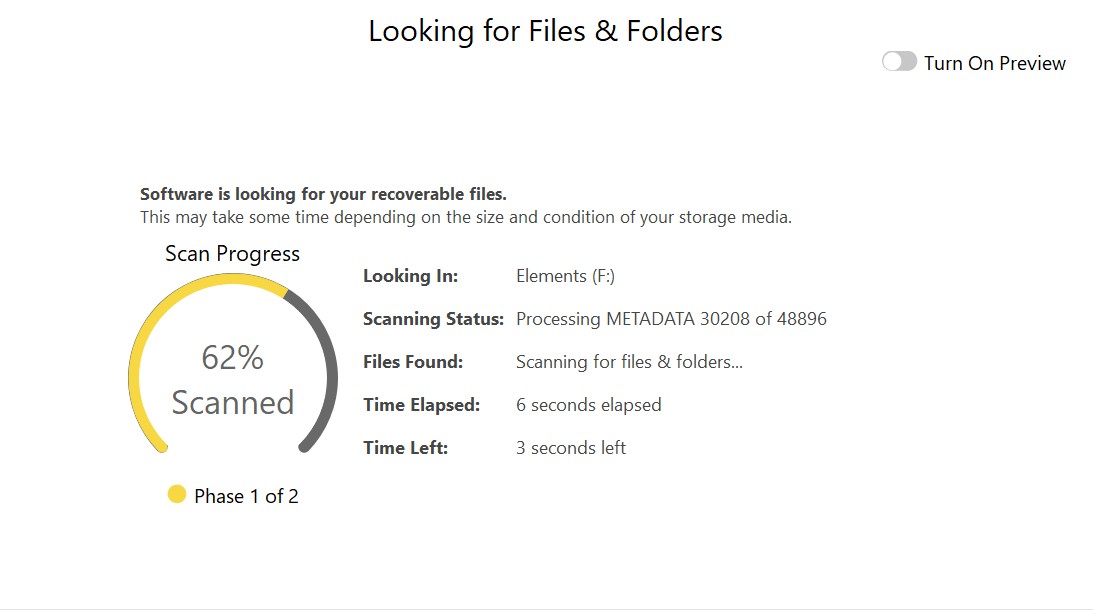
On average, data recovery software consumes around 8 to 15% of CPU processing power while actively scanning for lost files. However, on my Windows 11 system, EasyRecovery averaged just 3 to 4% CPU usage during the scan.
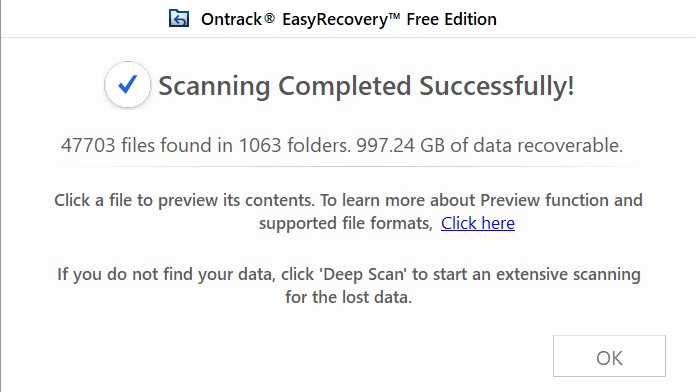
While this is impressively low for a typically resource-intensive process, it also raises some concerns about performance. In practice, the lighter CPU footprint appeared to come at the cost of scan depth and overall effectiveness, since the scans were not able to detect certain deleted files from the drive.
Ontrack EasyRecovery: Installation and in-use experience
The interface is modern and quickly navigable. It is easy to go over, and you can find your way to the first scan within a couple of minutes without any hassle. There’s also a handy preview mode, which you can turn on to preview the files being scanned.
However, it appeared more of a cosmetic feature during our tests, since you cannot actually click or recover anything until the scan has finally been completed.
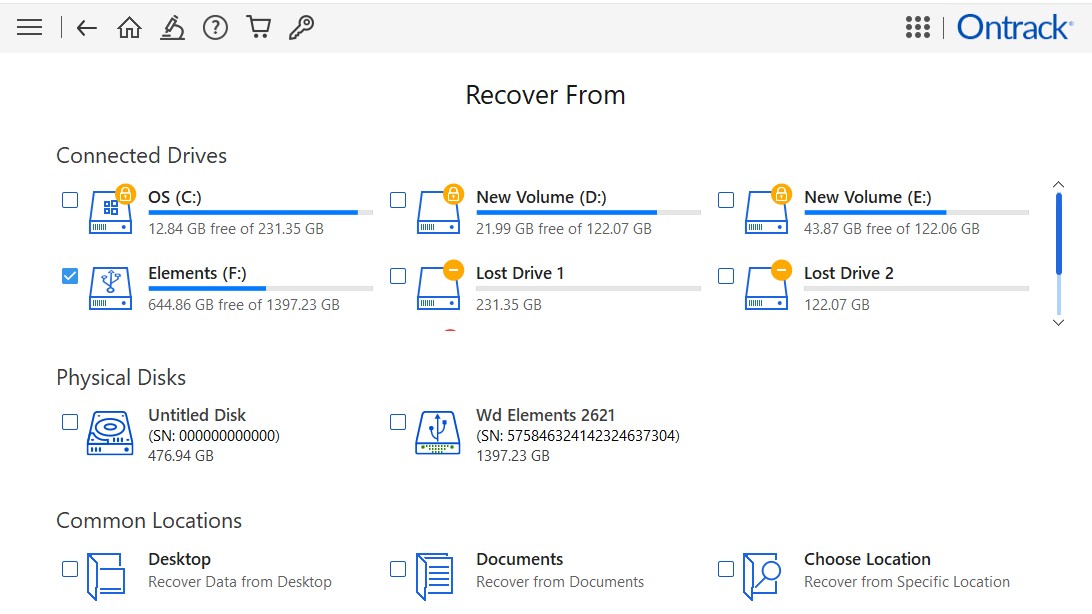
The left panel shows you the files being scanned in a tree view and file type view, along with the deleted list. However, none of these lists will populate until the scan completes. Comparatively, tools like Wondershare Recoverit and EaseUS let you recover files while the scan is running in the background.
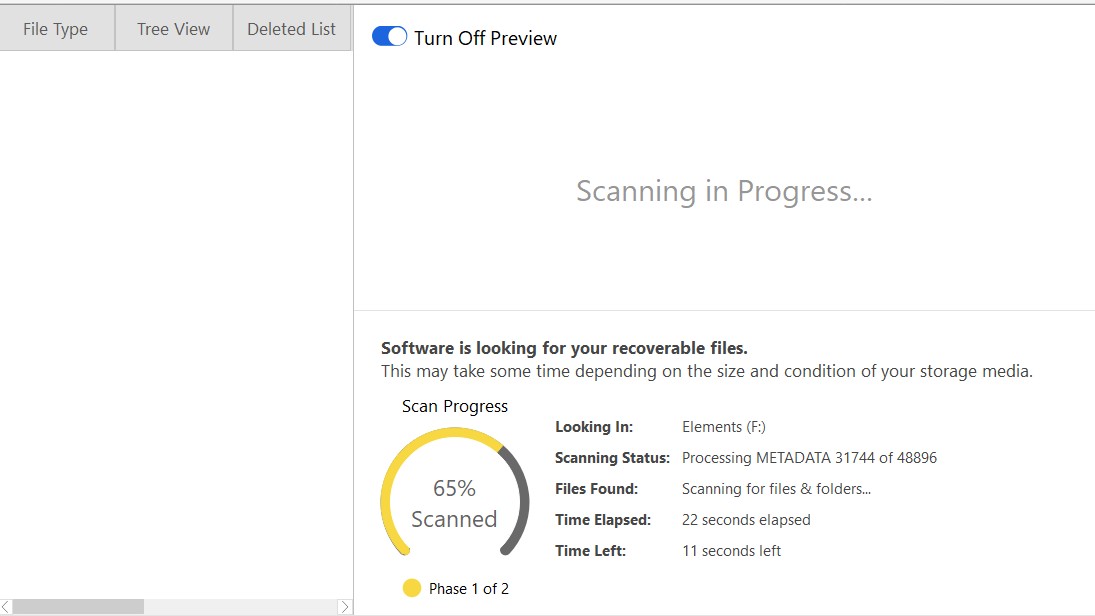
That said, EasyRecovery offers a handy preview feature where you can preview the files before recovering them. However, it may not work if the files were deleted a long time ago or have been corrupted beyond repair.
Ontrack EasyRecovery: How we tested
We sourced Mozart’s album from the Internet Archive, which contains 101 MB of data and 22 files, including 13 JPGs, 4 PNGs, 2 MP3s, and 2 FLAC files, to test data recovery capabilities across various formats. However, since EasyRecovery caps the per-file recovery limit at just 25 MB, we adopted a different approach to test it out.
We scanned our external 1.3 TB NTFS hard drive after copying and deleting certain PDF files and images on it, each within the prescribed limit. After the initial scan was done, we clicked on the file and hit recover. Within a minute, the files appeared in our destination folder with their contents intact.
Ontrack EasyRecovery: Support
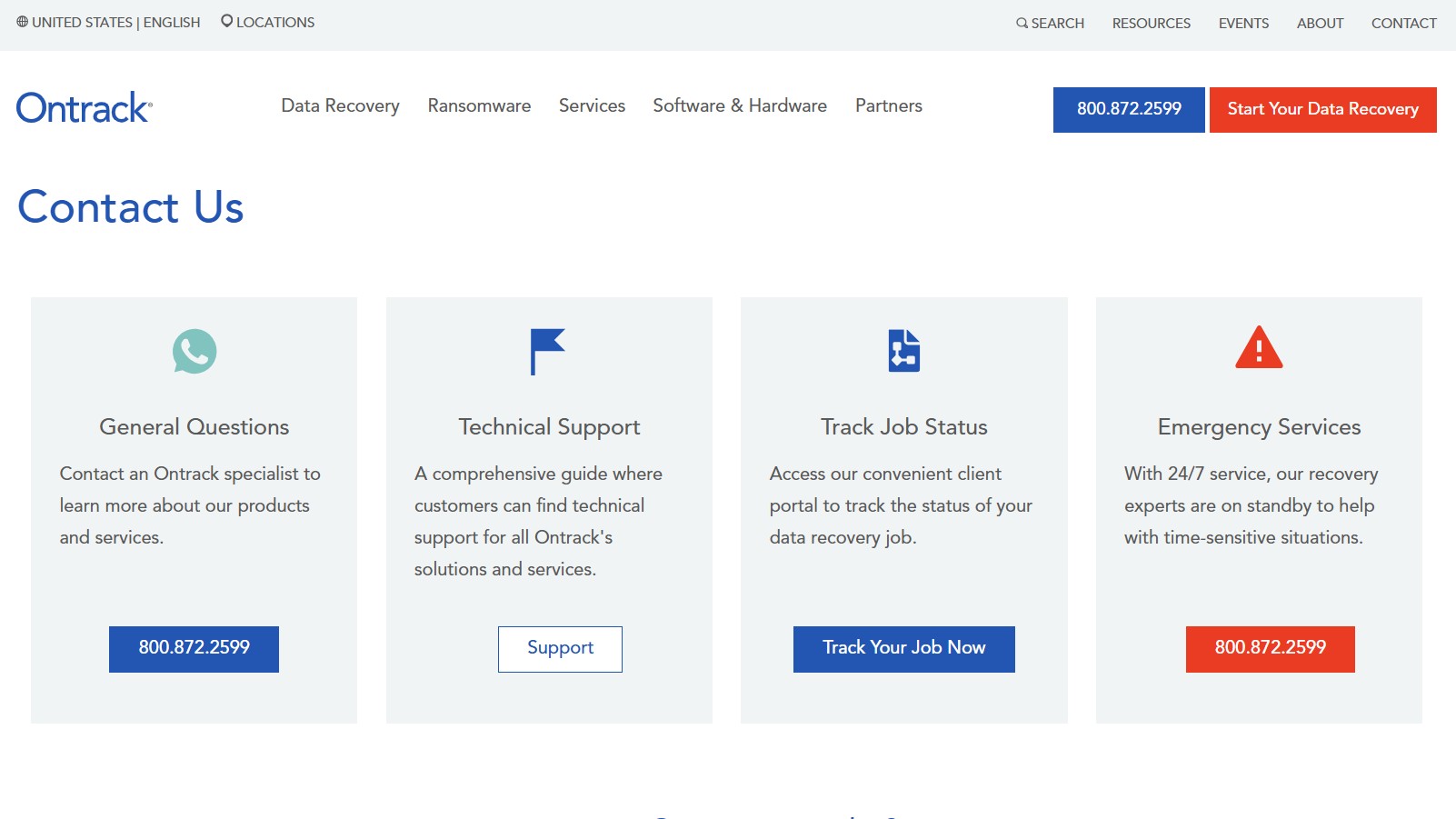
Upon visiting the Ontrack website, we couldn’t find a traditional “Support” section. However, the “Contact Us” page is fairly comprehensive, offering multiple options including general inquiries, technical support, job status tracking, and even emergency services. Users can get in touch with Ontrack specialists directly via the contact form or by calling them.
There’s also a dedicated option to track ongoing recovery jobs through a client portal, along with 24/7 emergency services for time-sensitive situations. While the platform does cover some general FAQs on its site, there isn’t much detailed guidance on performing specific recovery tasks. That said, the availability of direct human support and round-the-clock assistance helps bridge that gap for most users.
Ontrack EasyRecovery: The competition
Arcserve UDP and MiniTool Data Recovery are two popular alternatives to Ontrack EasyRecovery. Both come with comprehensive file recovery options for events such as accidental deletion, virus attack, and disk failure. Arcserve is more geared toward business clients, and it is great at data recovery in environments that use large volumes of data. It is also very effective at minimizing data loss when it comes to cloud applications.
MiniTool is designed more for at-home or small-business use than it is for corporate settings, and the highest tier plan is, in fact, called Personal Ultimate, with a pricing scheme that changes with the duration of your license and not with any additional features or functionality.
Of the three, Arcserve is the best option for enterprise-grade data recovery, while MiniTool can only be used in private or home settings and EasyRecovery provides a great middle-ground for individuals and small or medium-sized businesses.
Ontrack EasyRecovery: Final verdict
Despite its slow scanning process, Ontrack EasyRecovery is very good at its core function, which is finding and recovering lost files. It is one of the few platforms that offers enterprise-grade software for large organizations as well as governments. It can recover data from PCs, RAID volumes, HDDs, SSDs, and even supports Linux systems on higher-tier plans. It is beginner-friendly and easy to navigate with a handy preview feature.
However, its free plan is very limited, as it allows recovering files up to a maximum size of 25MB only, which makes it practically unusable for serious data recovery testing. Overall, if you’re looking for a dependable, no-frills recovery tool backed by strong industry credibility, EasyRecovery is a solid choice.
“}]]
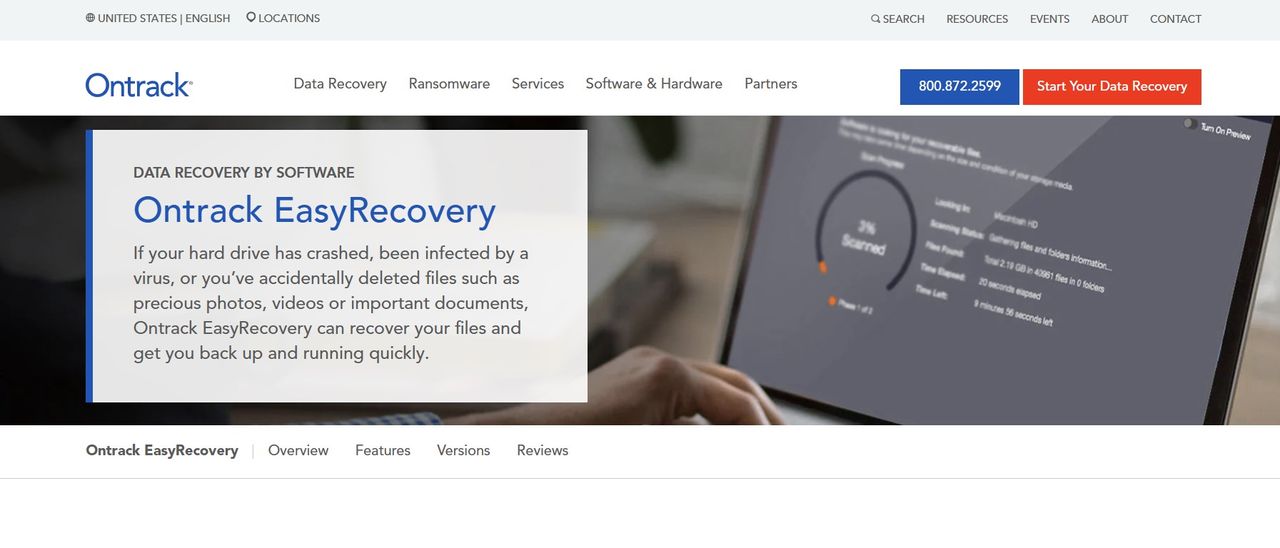 Ontrack EasyRecovery is a file recovery application that lets you recover, restore, erase, and manage your data. Here’s how it performed in our testing. Read More Latest from TechRadar US in Reviews