
[[{“value”:”
Parallels Desktop is often included among the best virtual machine software options for users who need to run Windows on a Mac. Its main appeal is convenience. Rather than presenting virtualization as a technical task, Parallels tries to make Windows feel like part of the Mac environment, which is still its biggest advantage over more manual alternatives.
This matters more on Apple Silicon Macs, where running Windows is no longer as simple as installing the standard x86 version of the operating system. Parallels focuses on Windows 11 Arm, and it handles much of the setup process for the user. That makes it especially useful for people who need Windows-only apps but do not want to manage installation media, drivers, or configuration details manually.
The result is a tool that feels more consumer-friendly than most virtualization platforms. It is not the cheapest option, and it is not free from compatibility limits, but it remains one of the few products in this category that can make running Windows on a Mac feel normal rather than experimental.
Parallels: Plans and pricing
Parallels Desktop is a commercial product, and pricing remains one of its main drawbacks. The Standard edition starts at $99.99 per year, while the Pro edition starts at $119.99 per year and the Business edition at $149.99 per year. Enterprise pricing is handled separately through sales.
The Standard edition is aimed at home and personal users, with resource limits of 8GB of virtual RAM and 4 virtual CPUs. The Pro and Business editions expand this significantly, supporting up to 128GB of virtual RAM and 32 virtual CPUs, while also adding more advanced tools for development, automation, testing, and business deployment.
A one-time purchase option is available for Standard users who prefer not to subscribe. However, the one-time Standard license only covers the version purchased. Future major upgrades require an additional payment, which makes the subscription model more practical for users who want to stay current with annual macOS and Parallels updates.
This pricing structure matters more than it used to. VMware Fusion is now available for free, which puts Parallels under more pressure to justify its cost. The argument for Parallels is no longer simply that it is the most capable option, but that it saves time and provides a more polished experience.
For casual users, Standard may be enough, especially if the goal is to run office software, web apps, or a small number of Windows-only tools. Users who need more CPU cores, more memory, command-line tools, or advanced development features will need to look at Pro. That makes Parallels more flexible, but also more expensive over time.
In practice, Parallels is best seen as a productivity expense rather than a casual utility. If Windows is central to your workflow on a Mac, the price can be easier to justify. If you only need a virtual machine occasionally, free alternatives become much more attractive.
Parallels: Features
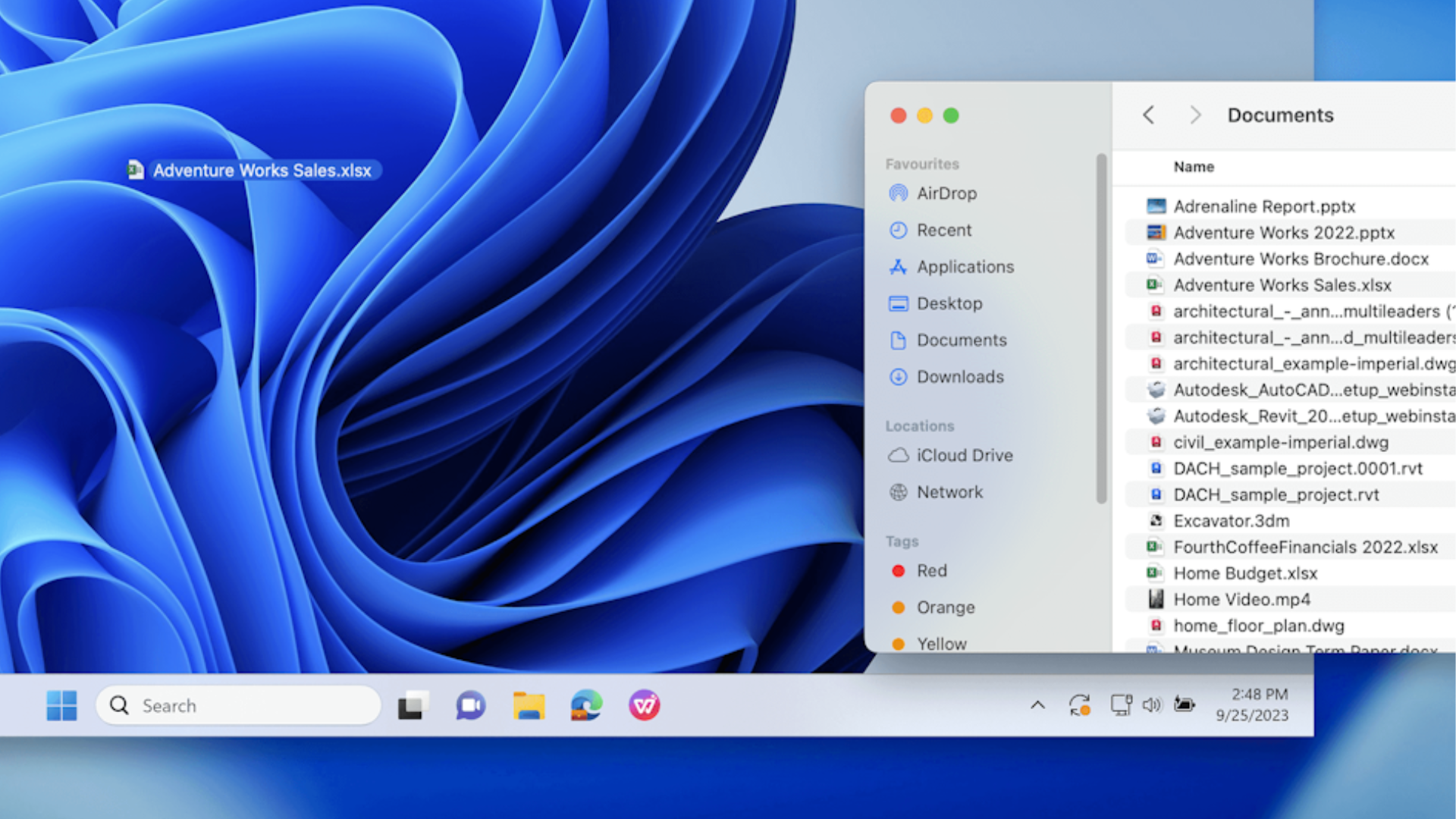
Parallels Desktop provides a broad set of virtualization features, but its strongest features are the ones that reduce friction between Windows and macOS. Windows 11 installation is highly guided, and on Apple Silicon Macs the software is built around the Arm version of Windows, which is the most practical route for modern Mac hardware.
Coherence Mode remains one of the defining features. It allows Windows applications to appear alongside Mac apps without keeping the full Windows desktop in view. This makes Parallels feel less like a separate virtual machine and more like a compatibility layer for Windows software.
Integration goes further than display handling. Users can share folders, copy and paste between systems, drag files between Mac and Windows apps, and access Windows applications in ways that feel close to native macOS behavior. There are practical workflow benefits such as Spotlight access to Windows apps and files, and the ability to use Mac-side tools more naturally while working inside Windows.
Parallels also supports macOS and Linux virtual machines, although Windows remains the main reason most users buy it. More advanced editions add features aimed at developers and power users, including expanded CPU and memory allocation, command-line tools, and more control over virtual environments.
There are still limits. On Apple Silicon Macs, Windows runs as Windows 11 Arm. Many x86 Windows applications can work through Microsoft’s translation layer, but this is not the same as running every older Windows app natively. Parallels can also support x86 environments in some scenarios, but this is better treated as a specialist capability than a mainstream workflow.
Parallels: Interface and use
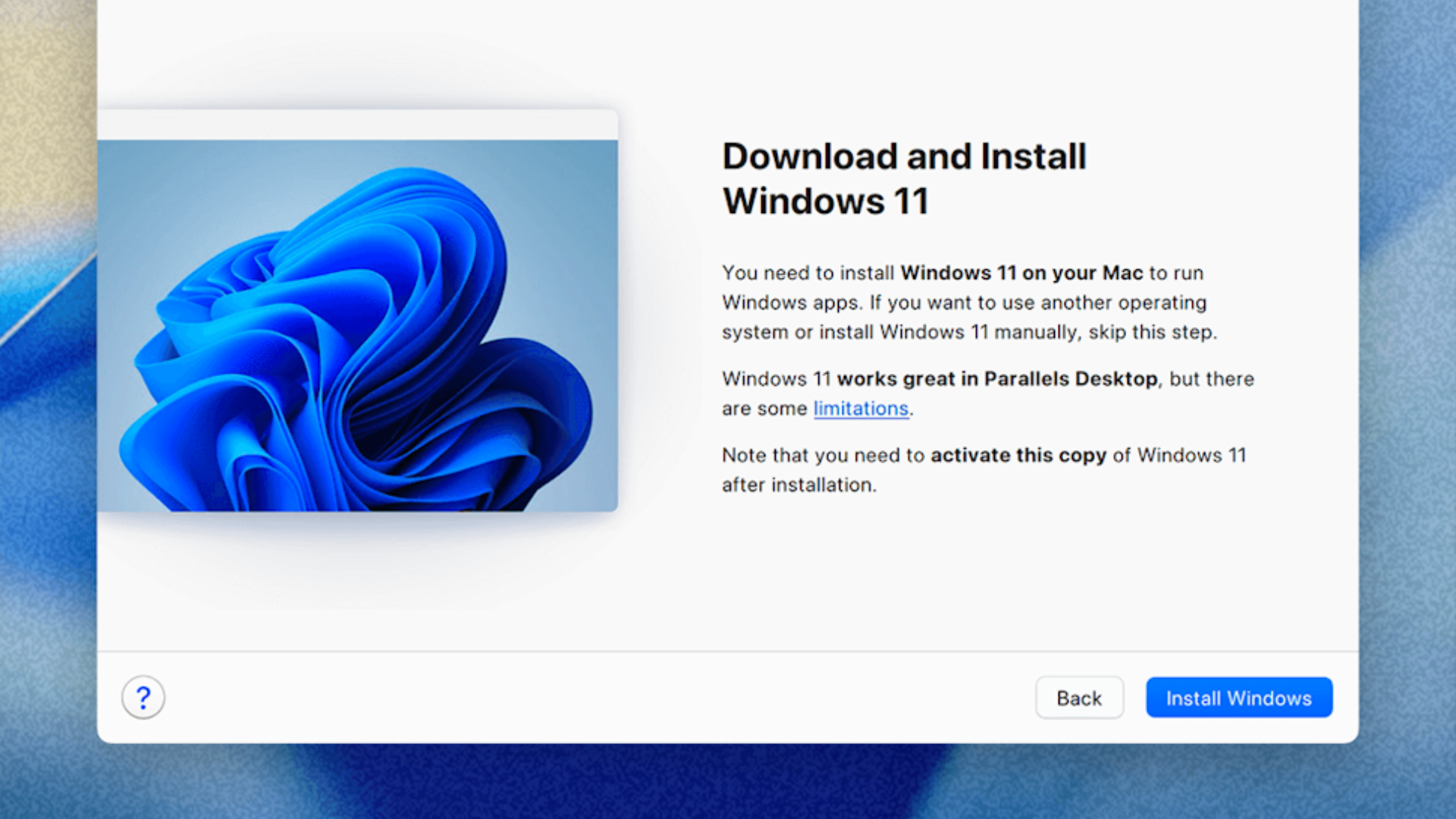
Parallels Desktop is strongest when judged as a user experience rather than just a virtualization engine. The setup process is one of the easiest in the category, especially compared to UTM or VMware Fusion. Instead of requiring users to build a virtual machine manually, Parallels guides the process and handles much of the configuration automatically.
This is the area where Parallels justifies much of its price. The interface is clean, direct, and designed for Mac users who may not have a technical background. Common tasks such as launching Windows, resizing the VM, sharing folders, or switching view modes are easy to find and rarely require deep configuration.
Coherence Mode is also central to the experience. By hiding the Windows desktop and letting Windows apps sit directly on the Mac desktop, Parallels reduces the sense that the user is working between two separate systems. This is not essential for everyone, but for users who spend hours moving between macOS and Windows applications, it can make a major difference.
The experience is not perfect. Some advanced settings still require a basic understanding of virtualization, and accessibility feedback from real users suggests that setup and certain preferences can still be awkward in specific workflows. But compared to most competing tools, Parallels remains the most approachable option for everyday Mac users who need Windows.
Parallels: Performance
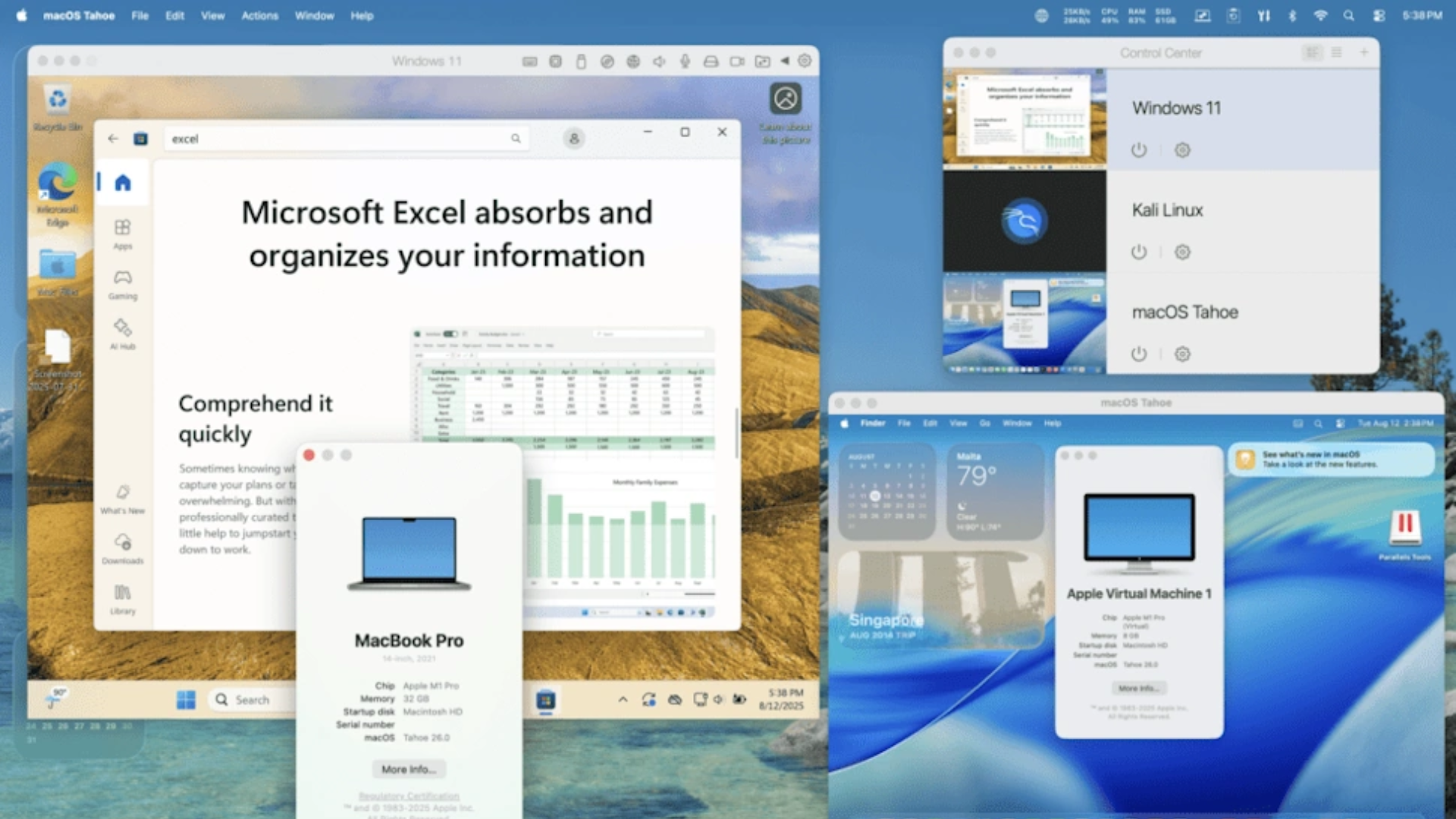
In use, Parallels Desktop delivers strong performance for everyday Windows workloads, particularly on Apple Silicon Macs with enough memory. Office apps, browser-based tools, communication apps, and general productivity software are the areas where it feels most convincing.
On an M4 Mac Mini with 16GB of RAM, Windows was allocated four CPU cores and 8GB of memory, yet still handled large Excel files, Outlook, Chrome tabs, 2160p HDR video playback, and large spreadsheet operations smoothly. That is not a formal benchmark, but it supports the broader point that Parallels is well optimized for practical productivity work.
Recent reporting also suggests that Parallels can keep Windows 11 usable even on more limited Apple Silicon hardware for light productivity tasks. That does not mean every Mac is equally suited to virtualization. Running macOS and Windows at the same time places pressure on memory, and 8GB unified memory should be treated as workable for light use rather than ideal for sustained work.
For users who expect to run macOS and Windows side by side for extended periods, 16GB or more is a more realistic baseline. This becomes more important when using larger productivity apps, browser-heavy workflows, or Windows software that depends on translation layers rather than native Arm support.
Heavier workloads remain more complicated. CAD, 3D rendering, graphics-heavy Windows applications, and sustained multi-core workloads are better suited to higher-end Macs with more memory and stronger cooling. x86 translation also adds overhead, especially for older Windows software that has not been optimized for Arm.
Graphics support is useful but should not be overstated. Parallels supports DirectX 11 and OpenGL 4.1, which makes it suitable for some Windows applications and lighter games, but the lack of DirectX 12 support limits its usefulness for newer Windows games and graphics-heavy workloads. For productivity and compatibility, performance is strong. For demanding Windows gaming or professional 3D work, a dedicated Windows system remains the safer option.
Parallels: Support
Parallels benefits from a more structured support model than many free virtualization tools. Paid subscriptions include access to support channels, and the product is updated regularly to keep pace with macOS and Windows changes. This is particularly important on the Mac, where Apple platform updates can affect virtualization behavior quickly.
The company has also kept Parallels closely aligned with recent platform releases, including macOS Tahoe 26 and Windows 11 25H2. That level of update cadence is one of the reasons Parallels remains attractive for users who rely on Windows regularly and cannot afford long compatibility gaps.
Support is not the same for every user, though. Standard users and Pro users may have different expectations, and some real-user feedback still points to occasional issues around audio, accessibility, and settings behavior. For most mainstream users, support and documentation are good enough, but Parallels is not immune to friction.
Parallels: The competition
Parallels Desktop competes most directly with VMware Fusion and UTM. VMware Fusion is now the biggest pressure point because it is free, making Parallels’ subscription model harder to justify for users who only need occasional Windows access.
With VMware Fusion now available at no cost, Parallels has to justify its price through ease of use, integration, and ongoing Mac-focused updates rather than basic virtualization capability alone. That is still a strong argument for regular users, but it is less persuasive for technical users who are comfortable with more manual setup.
That said, Parallels remains easier to recommend for users who value convenience. VMware Fusion can run Windows on Mac, but setup and day-to-day workflow tend to feel less polished. UTM is also capable and free, but it requires more manual configuration and is less approachable for users who simply want Windows apps to work.
VirtualBox is less relevant on modern Apple Silicon Macs, especially for users who want a smooth Windows 11 experience. It remains important in the broader virtualization market, but Parallels operates in a more Mac-specific category where integration matters as much as raw virtualization capability.
In practice, Parallels remains the best option for Mac users who regularly depend on Windows software and want the least amount of friction. VMware Fusion and UTM are better value choices, especially for technical users, but Parallels still offers the most refined overall experience. Its main challenge is no longer capability, but whether that refinement is worth the price.
Parallels: Final Verdict
Parallels Desktop remains the most polished virtualization tool for Mac users who need regular access to Windows. Its biggest advantage is not simply that it can run another operating system, but how smoothly it integrates Windows into the macOS workflow. Setup is straightforward, Windows 11 can be installed with minimal effort, and features such as Coherence Mode, shared files, drag-and-drop, and Mac-style app access make the experience feel more refined than most alternatives.
That refinement comes with a cost. Parallels is no longer competing only against awkward or limited free tools, but also against VMware Fusion, which is now available at no cost. This makes the pricing harder to ignore, especially for users who only need occasional access to Windows.
For Mac users who rely on Windows apps regularly, Parallels still makes a strong case. It is fast, convenient, and highly integrated, but users with lighter needs may find that the price is harder to justify than before.
“}]]
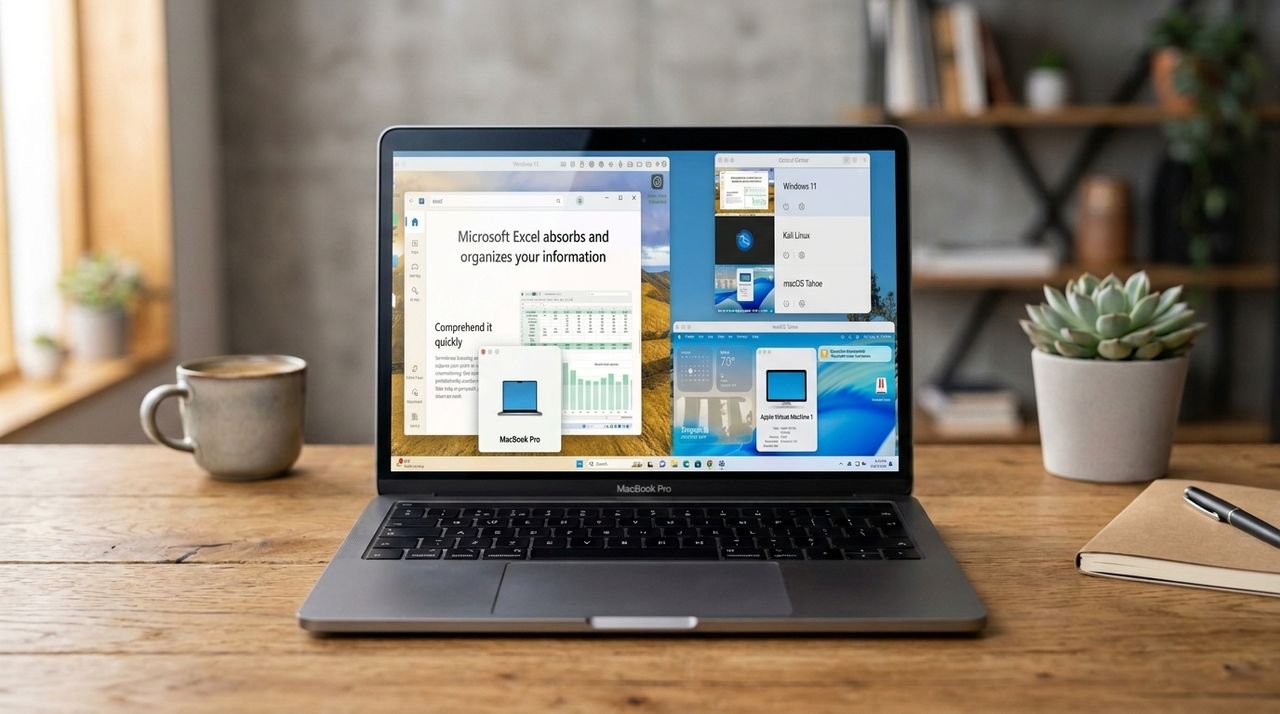 Polished Mac virtualization that still has to justify its price. Read More Latest from TechRadar US in Reviews