
1. Set up your SAP HANA database in SAP HANA Cloud trial
Please note that it is recommended to use a Trial of the SAP Business Technology Platform (aka SAP BTP), and not a Free Tier or your organization’s account, if you do not have it yet: https://developers.sap.com/group.hana-cloud-get-started-1-trial.html
Make sure that you know your database’s SQL endpoint and the DBAdmin’s password.
2. Open your SAP Business Application Studio
If you are using the SAP BTP free trial, then open the SAP Business Application Studio trial from the “Quick Tool Access” section.
Should you have issues opening SAP Business Application Studio (for example when you have had the account for a long time), then check the steps in this tutorial – Set Up SAP Business Application Studio for Development.
3. Create a new Dev Space for the developer challenge
Go to your instance of SAP Business Application Studio (further referred to as “BAS”).
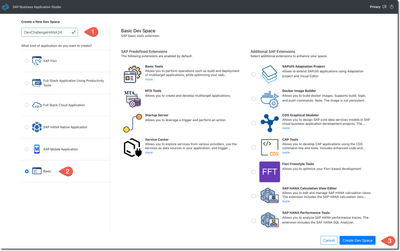
For this exercise create a new Dev Space called DevChallengeHANA24 of a kind Basic in BAS:
Screen element Value
Dev Space nameDevChallengeHANA24KindBasic
Open the dev space once it is in the state “Running”.
Close the Get Started tab if it opens.
4. Import the profile with the required extensions
You want to customize extensions used in SAP BAS. By default it contains many extensions you will not need. At the same time, you need some extensions specific to working with Python and Jupyter notebooks.
Import the profile `HANAwPy` from the gist: https://gist.github.com/Sygyzmundovych/1938132cf5810680c25f675fe3810630
Create the profile only using Extensions and Code snippets…
… and switch to this new profile.
You should see fewer icons in the Activity Bar. When you click on the Extensions icon in the Activity Bar, you should see extensions like Jupyter and Python in the folder “DEV SPACE – INSTALLED.”
As well the icon of the profile should change to the icon with a snake.
5. Open the Terminal
Even though we’ll use Jupyter Notebooks in the exercises, for this setup exercise, we’ll stick solely to the terminal.
Open it from the hamburger menu:
Run a few commands in the terminal to explore the setup:
whoami
pwd
ls
hostname
echo ${WORKSPACE_ID}
clear
You can also maximize the terminal’s panel.
Check the available locale and set the missing values.
locale -a
export LC_ALL=C.utf8
locale
1. Set up your SAP HANA database in SAP HANA Cloud trialPlease note that it is recommended to use a Trial of the SAP Business Technology Platform (aka SAP BTP), and not a Free Tier or your organization’s account, if you do not have it yet: https://developers.sap.com/group.hana-cloud-get-started-1-trial.htmlMake sure that you know your database’s SQL endpoint and the DBAdmin’s password.2. Open your SAP Business Application StudioIf you are using the SAP BTP free trial, then open the SAP Business Application Studio trial from the “Quick Tool Access” section.Should you have issues opening SAP Business Application Studio (for example when you have had the account for a long time), then check the steps in this tutorial – Set Up SAP Business Application Studio for Development.3. Create a new Dev Space for the developer challengeGo to your instance of SAP Business Application Studio (further referred to as “BAS”).For this exercise create a new Dev Space called DevChallengeHANA24 of a kind Basic in BAS:Screen element ValueDev Space nameDevChallengeHANA24KindBasicOpen the dev space once it is in the state “Running”.Close the Get Started tab if it opens.4. Import the profile with the required extensionsYou want to customize extensions used in SAP BAS. By default it contains many extensions you will not need. At the same time, you need some extensions specific to working with Python and Jupyter notebooks.Import the profile `HANAwPy` from the gist: https://gist.github.com/Sygyzmundovych/1938132cf5810680c25f675fe3810630Create the profile only using Extensions and Code snippets…… and switch to this new profile. You should see fewer icons in the Activity Bar. When you click on the Extensions icon in the Activity Bar, you should see extensions like Jupyter and Python in the folder “DEV SPACE – INSTALLED.” As well the icon of the profile should change to the icon with a snake. 5. Open the TerminalEven though we’ll use Jupyter Notebooks in the exercises, for this setup exercise, we’ll stick solely to the terminal.Open it from the hamburger menu:Run a few commands in the terminal to explore the setup: whoami
pwd
ls
hostname
echo ${WORKSPACE_ID}
clear You can also maximize the terminal’s panel.Check the available locale and set the missing values. locale -a
export LC_ALL=C.utf8
locale Read More Application Development Blog Posts articles