
[[{“value”:”
If you’re a small business looking for a reliable data backup and data recovery software, CrashPlan might be what you’re looking for. It allows you to take periodic backups of all system files with unlimited storage, with an option to recover data if you end up accidentally deleting it from your system.
In this article, we’ll discuss the various features CrashPlan offers, along with its pricing, installation, and in-use experience. Stick around till the end to find out if CrashPlan is what you’re looking for.
CrashPlan: Plans and pricing
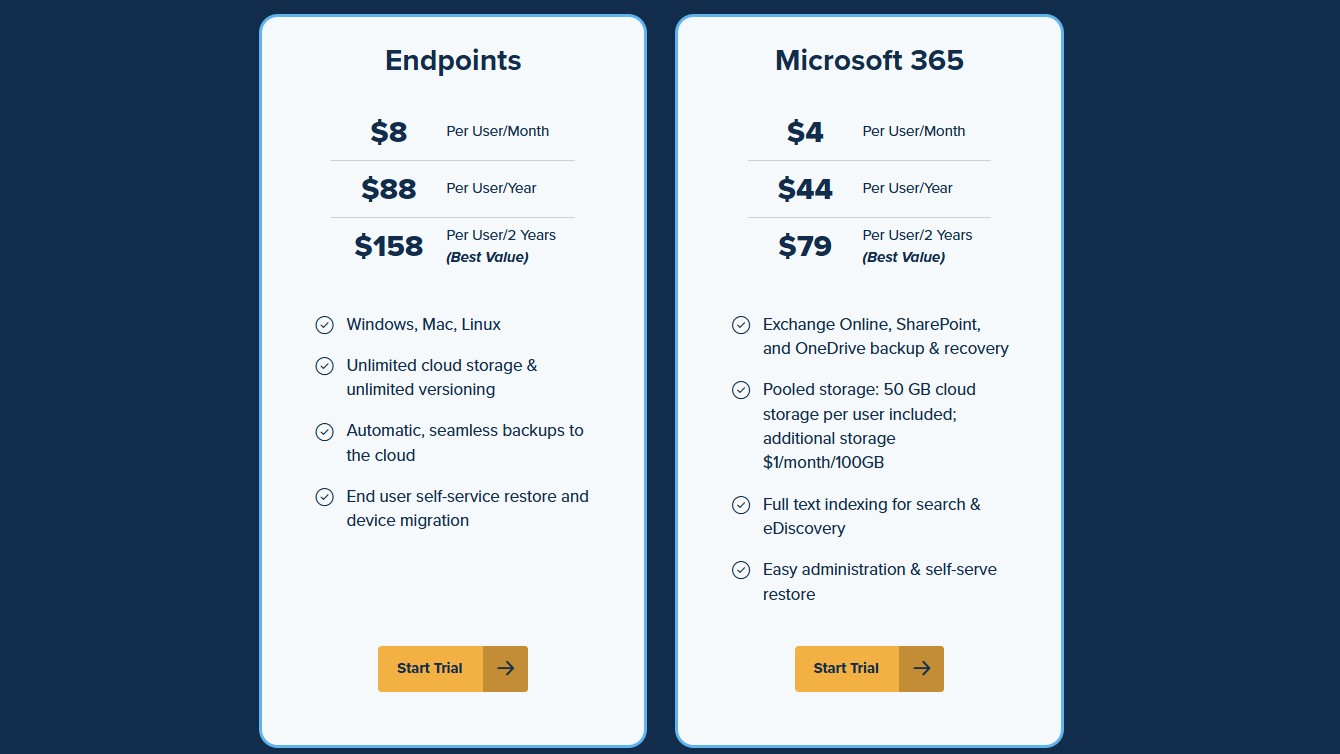
For small businesses, CrashPlan’s pricing starts at $8/user/month for up to 249 employees. The platform also offers longer-term plans, with its annual cost at $88/user/year and $158/user for a two-year period.
There’s also a Microsoft 365 plan which lets you back up Exchange Online, SharePoint, and OneDrive, with pooled cloud storage of 50 GB, costing $4/user/month, or $44/user/year, or $79/user for two years. You can also get additional storage at a cost of $1/month for 100 GB.
The best thing about CrashPlan is that it offers a fully functional 14-day free trial with access to all features it has to offer, including unlimited storage. This allows you to test out the software before purchasing a subscription.
CrashPlan: Features
CrashPlan is primarily a backup solution that lets you take periodic backups of important files and drives on operating systems such as Windows, Mac, and Linux.
CrashPlan uses a time-based versioning system that saves multiple versions of files as they are updated, based on preset time intervals such as 15 minutes, 60 minutes, daily, weekly, or monthly. This allows you to get a more granular history for recent edits, along with all versions stored in backup archives.
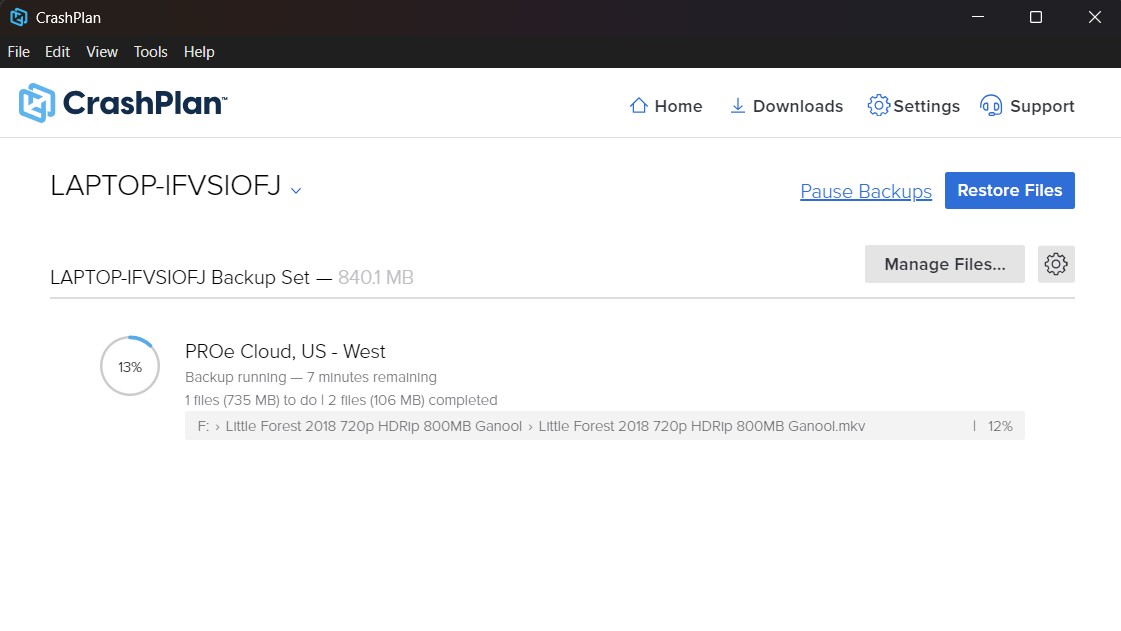
Data recovery is only an additional feature offered by the platform, which works very differently from other data recovery software we have seen.
The likes of EaseUS and Stellar Data Recovery scan for file system metadata to look for files that may have been deleted but not removed from memory. This is possible only if the data has not yet been overwritten. The longer the time elapsed from the point of deletion, the more difficult the recovery becomes.
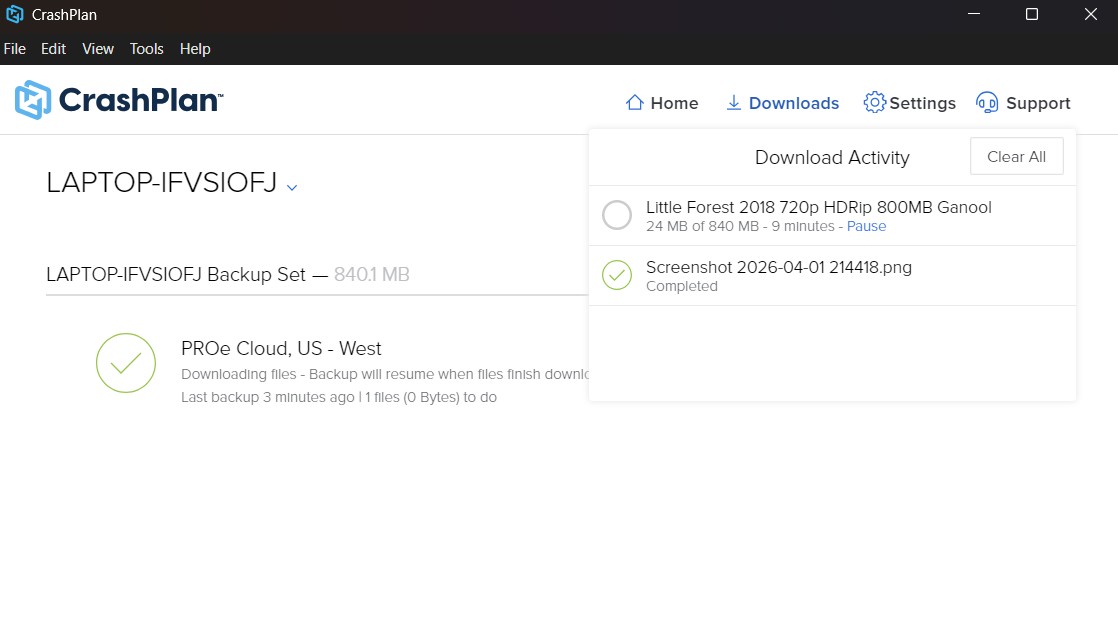
However, CrashPlan adopts a very different approach. It first lets you back up files from your system to remote cloud storage and then allows you to download data from that storage even if you have deleted the original files on your system. So this works as long as the data exists in the backup. However, one major downside to this is that there is a hard upper cap limit of 90 days for restoration.
CrashPlan: Installation and in-use experience
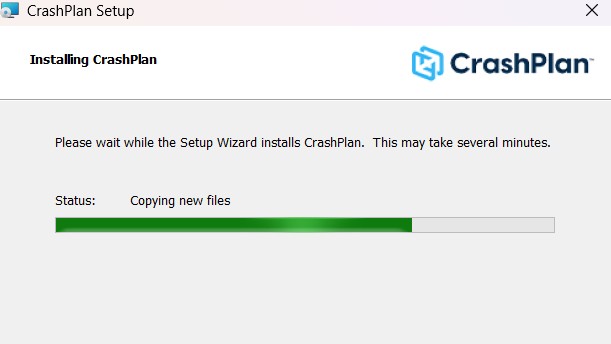
CrashPlan is fairly easy to install – you will find a free download button on its website for that. I found the interface to be pretty clean and modern, with a bit of a learning curve involved. There are a fair deal of settings you need to play with to strike the perfect balance between backup and productivity.
For example, there’s an exclusive ‘Backup Sets’ option, which lets you configure which files, locations, and drives you want to be backed up regularly. You can also choose the backup schedule, either keeping it up to date at all times or running backups only at specified times. Besides this, there’s also an option to exclude certain files from the backup selection.
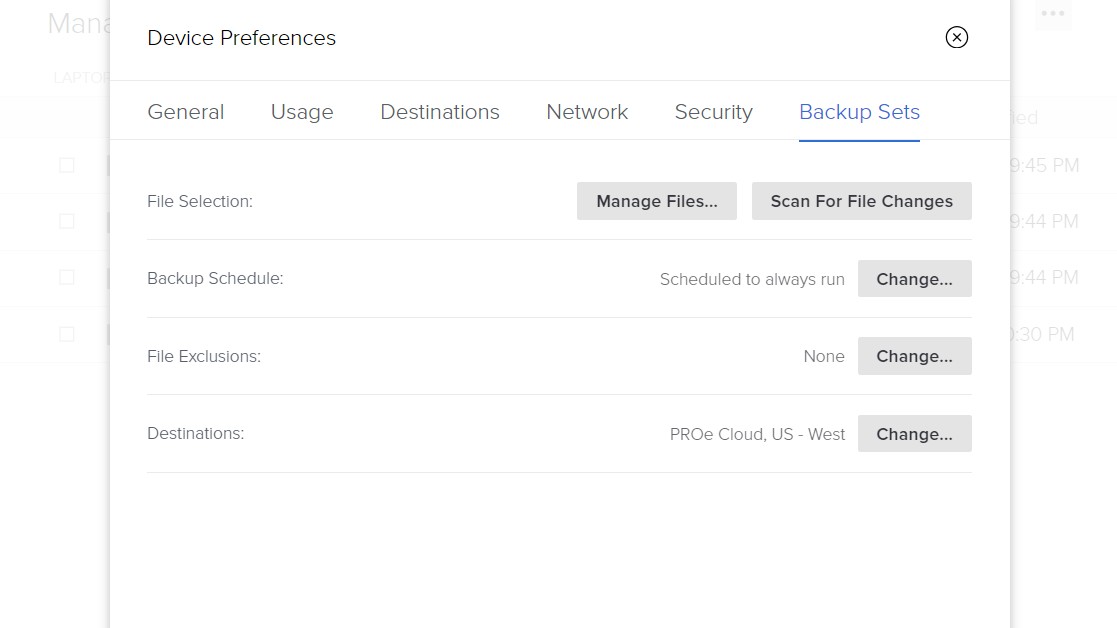
Under the ‘Usage’ Settings section, you’ll find other preferences, such as sending alerts when devices are not backed up for a certain number of days or logging you out after a certain period of inactivity. This option is set at 15 minutes by default, which I found to be quite low. We recommend setting it at least 60 minutes so that you don’t have to log in repeatedly.
Overall, the in-use experience is pretty good and intuitive with zero lags. That said, you might need a bit of time to get a hang of the platform. There are tons of user guides and YouTube videos to help you around.
CrashPlan: Efficiency
One of the biggest advantages to CrashPlan is that not only can you set the software to continuously back up files from your computer to the cloud, but also schedule periodic transfers, seamlessly incorporating the application into your workflow.
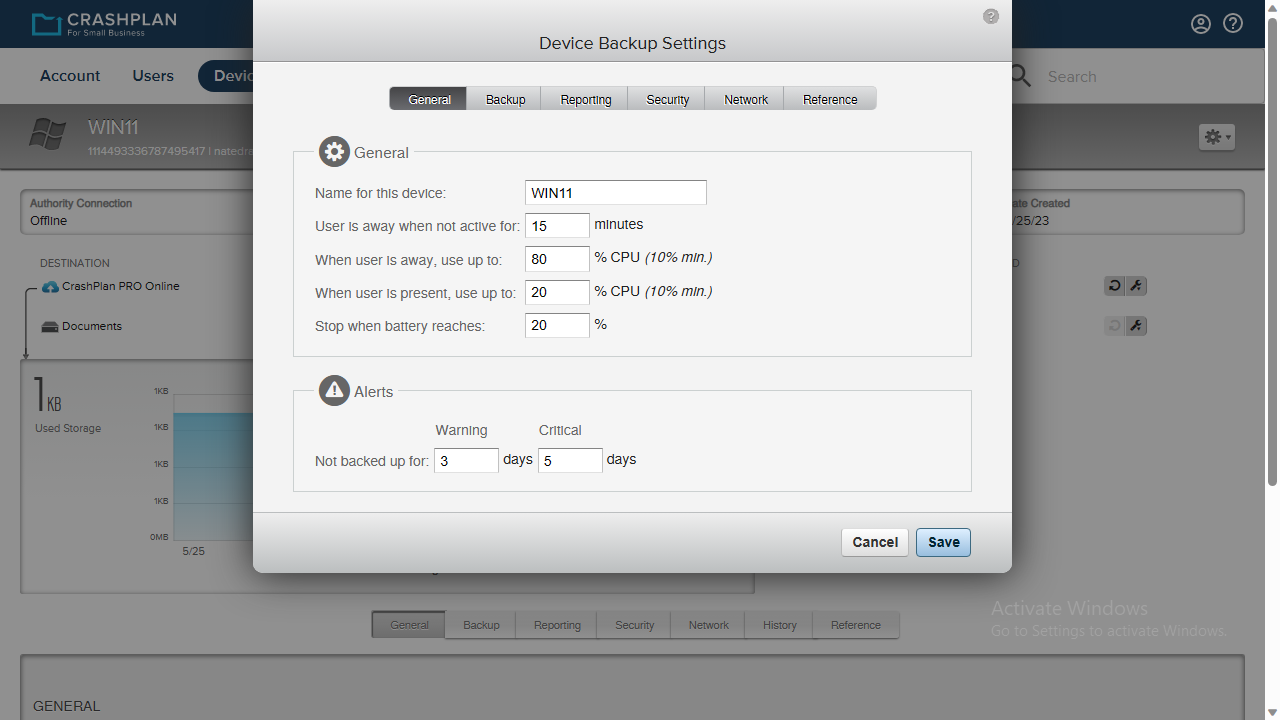
It’s also worth noting that CrashPlan gives you the option to throttle your file transfers to save bandwidth. This setting is sensitive to when your computer is idle, so it’s easy to have the bulk of your uploads take place overnight.
CrashPlan: Support
If you’re having trouble figuring out how to recover deleted files, you can get in touch with CrashPlan’s support team by live chat, email, or phone. Phone and chat support are only available during normal US business hours Monday to Friday.
Email help is available 24/7, although you may wait several hours for an answer if you send a request during the middle of the night in the US.
For questions about the software and data restoration, CrashPlan also has an extensive online documentation library. Most of the help articles come with walkthrough videos, which is helpful when you’re first learning the software.
How we tested CrashPlan’s performance
To test out CrashPlan’s capabilities, we signed up for their 14-day free trial and installed the application on our Windows 11 system with a 12th Gen Intel i5 processor. We then chose an MP4 file of around 840 GB to back up on the cloud server. The whole process took 10 minutes.
After this, we went ahead and deleted the file from our system and emptied the Recycle Bin. Then, we restored the same file from the cloud server, which took another 10 minutes or so. The file was not damaged and was restored with all its contents intact.
We repeated the same process with some other files and folders, and each time, CrashPlan was able to restore the files perfectly.
CrashPlan: Final verdict
CrashPlan is a data backup software first, with recovery as an ancillary feature. It is ideal if you are a small business that wants to regularly back up sensitive business data and recover it in case of accidental loss. However, recovery only works for 90 days, beyond which the files may be permanently lost.
The pricing is fairly affordable compared to other backup software, with a modern and sleek interface. However, there is a bit of a learning curve involved, and it would take a few days to get a hang of the platform.
If you’re only looking for a dedicated data recovery option, platforms like EaseUS, Wondershare Recoverit, and Stellar Data Recovery might be better options.
“}]]
 Our CrashPlan review will look at whether you can rely on this data recovery and backup software to restore files after a crash or malware attack. Read More Latest from TechRadar US in Reviews