
[[{“value”:”
Microsoft is finally restoring Windows 10 features in Windows 11 after more than five years of waiting. The first wave includes the ability to reposition the taskbar and make it smaller, but that’s not all. The company also plans to let you configure different taskbar positions per monitor and add multiple new features to the Start menu.
On Windows 10 or any other version of Windows, you could easily change the taskbar position by holding the taskbar and dragging it to the sides of the screen. However, Windows 10 does not officially allow you to have different taskbar positions for each monitor. That might change with Windows 11, which appears to be testing this feature.
In a document, Microsoft quietly teased that it’s testing support for different taskbar positions per monitor alongside the ability to change position using drag and drop.
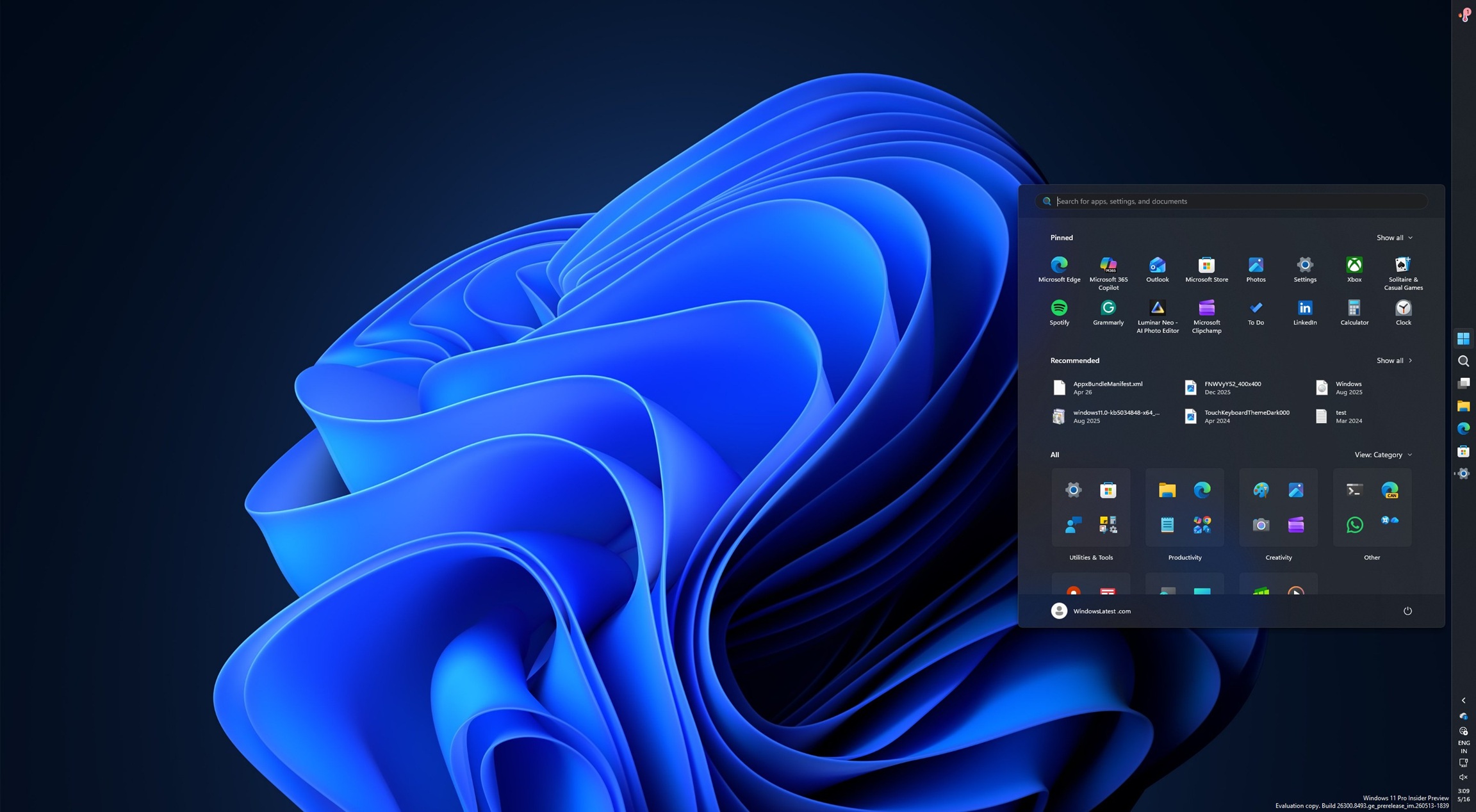
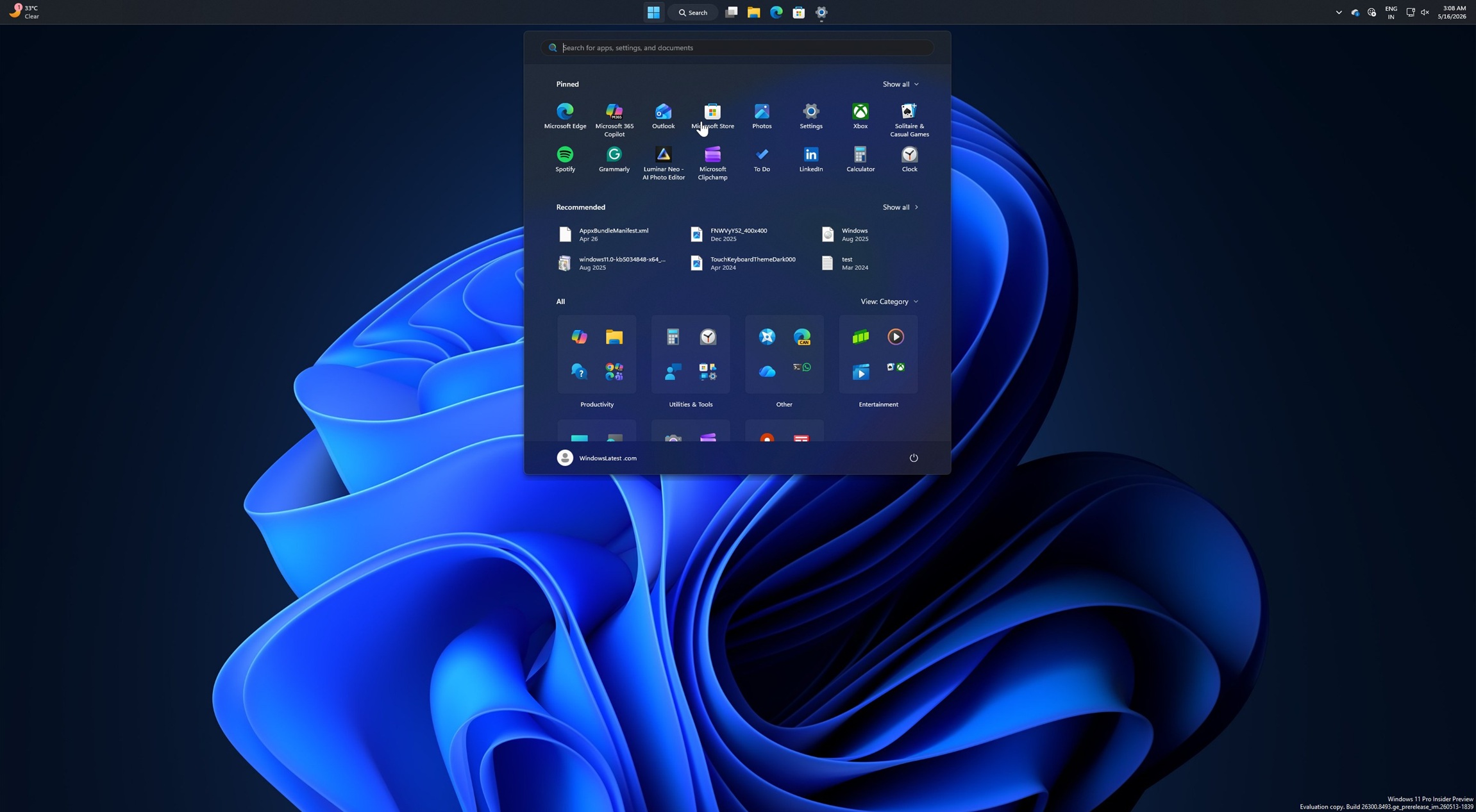
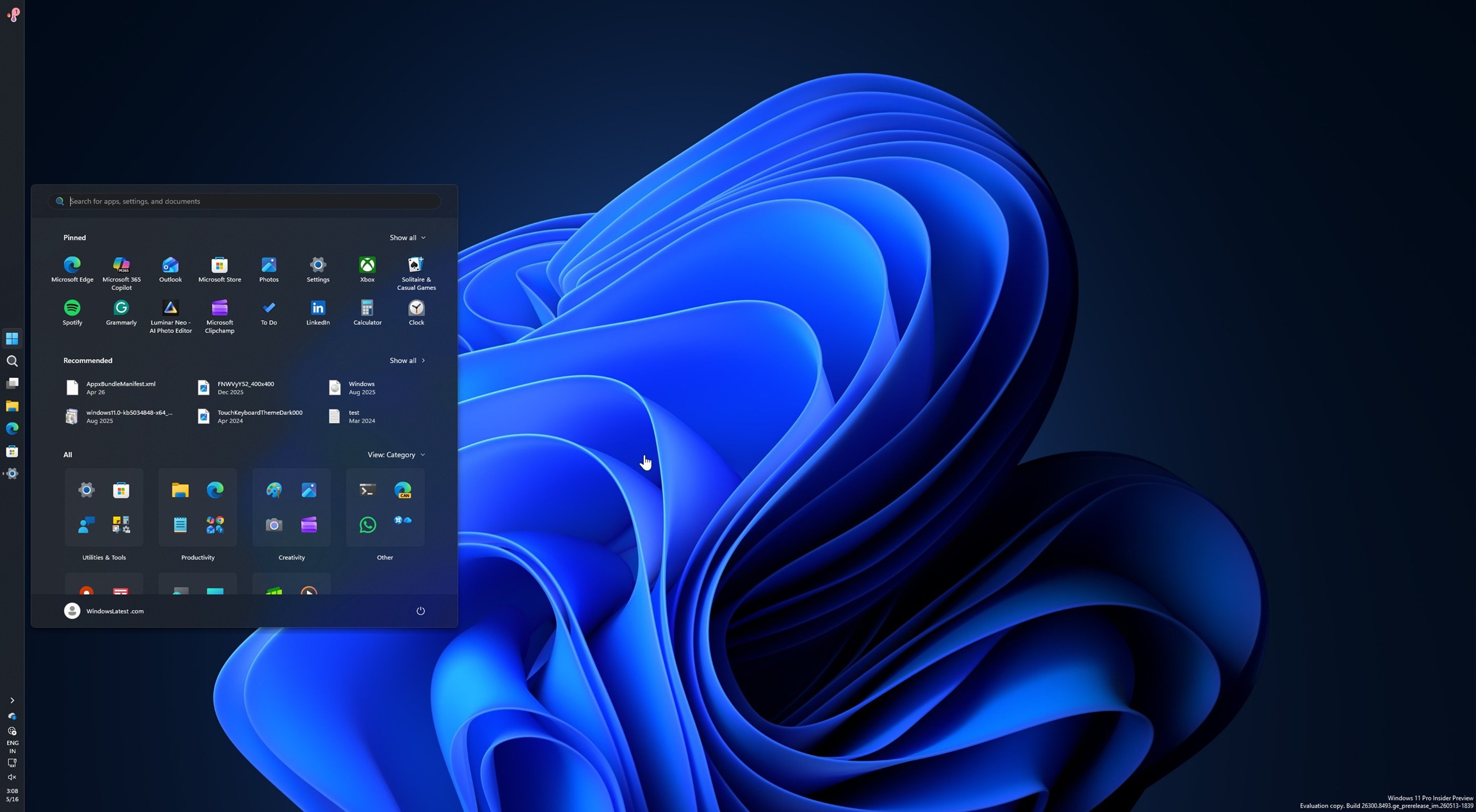
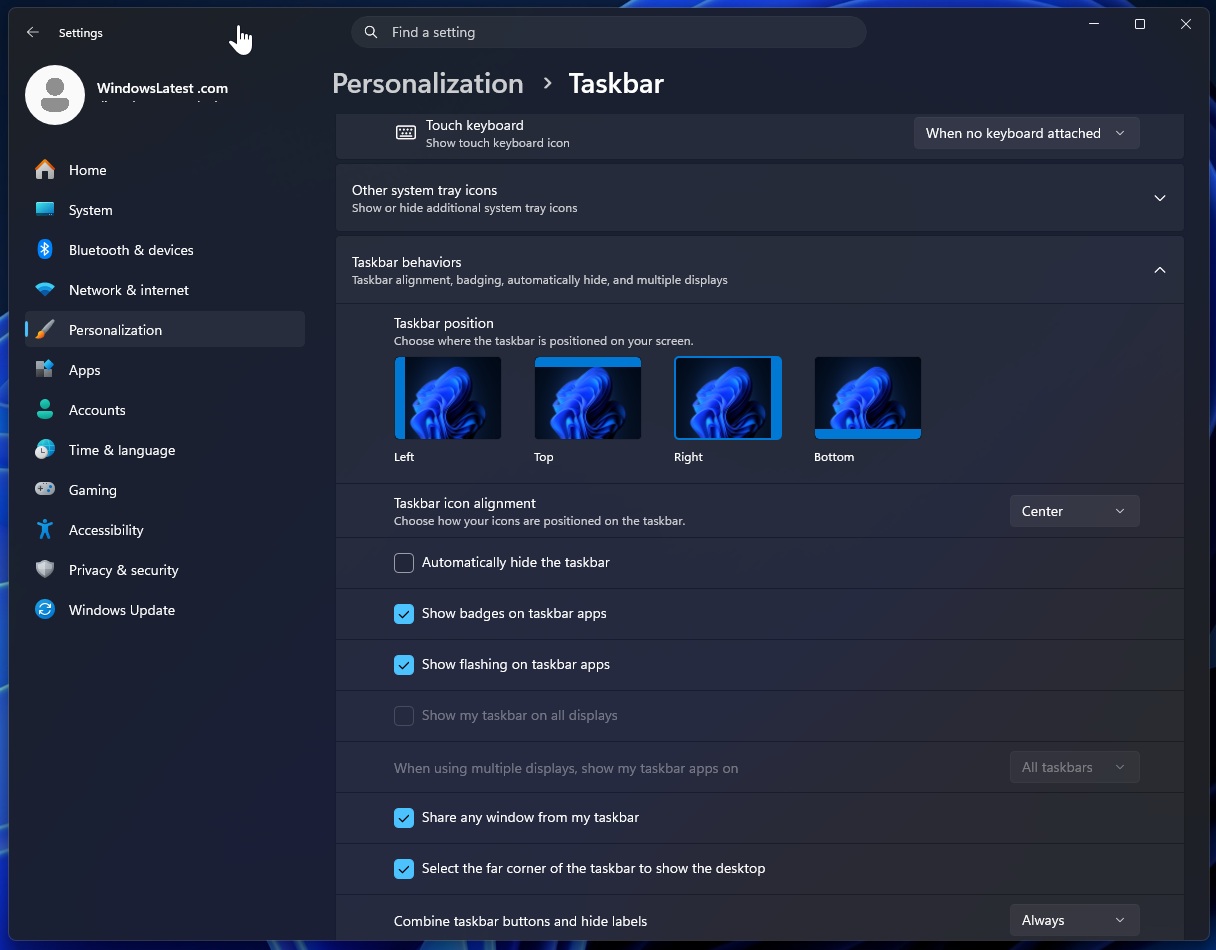
Right now, if you want to change the taskbar’s position, you need to go to Settings > Personalization > Taskbar > Taskbar behavior, and then choose your preferred layout. This will soon change, as you’ll be able to reposition the taskbar using drag and drop.
“We are also evaluating additional features like different taskbar positions per monitor and drag and drop,” says Diego Baca, who is the design director at Microsoft. “Our focus is to deliver the core functionality you need while keeping the experience simple, predictable, and free from accidental taskbar movement.”
Microsoft teases five new features for the Start menu
Windows 11’s Start menu is adding a ‘resize’ control with two options for now: large and small. Until now, the new Start menu with categories layout adapts to your display resolution, and we’ve been complaining about that behaviour for a year now.
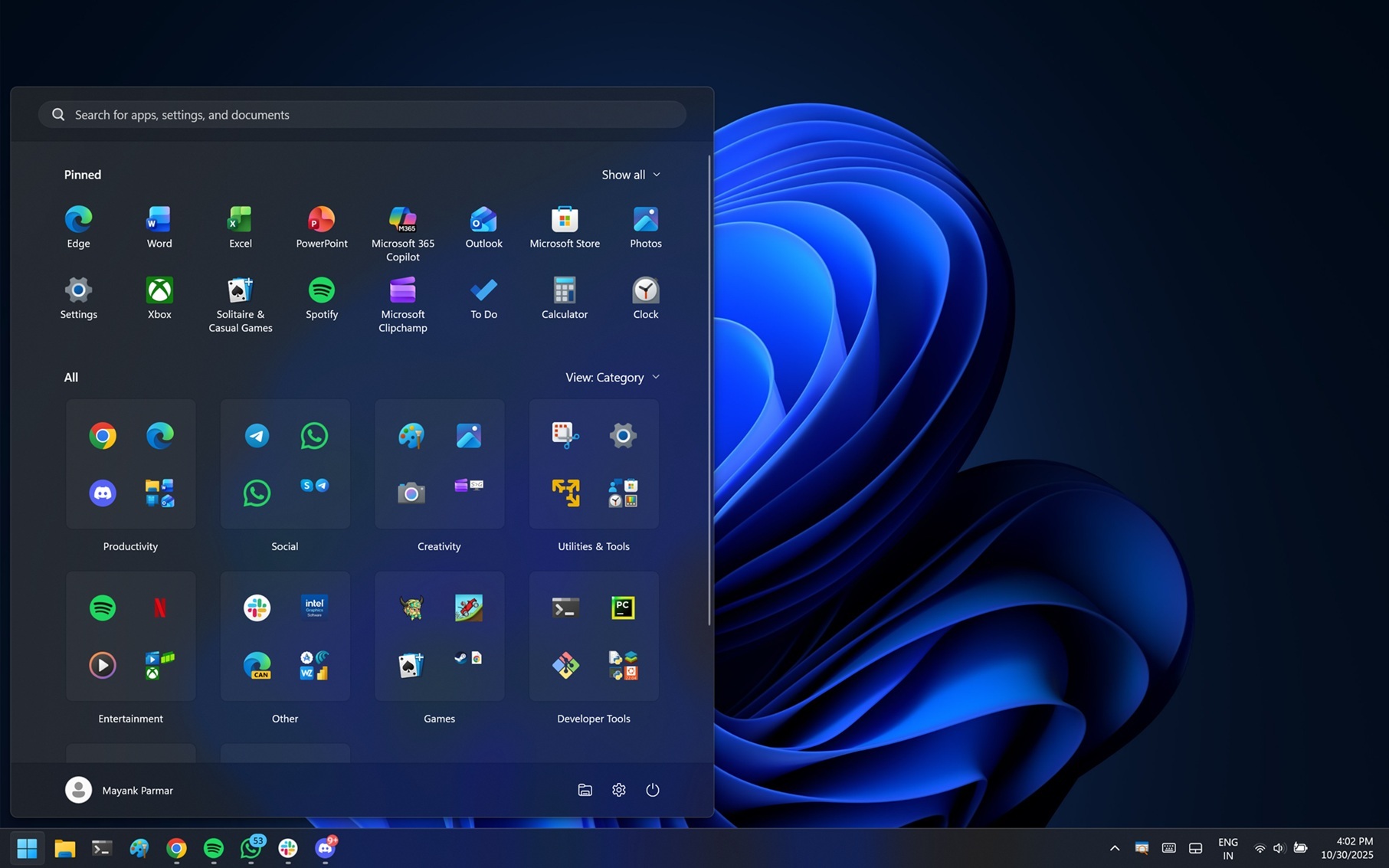
Adaptive Start menu isn’t necessarily bad, but I’ve observed that it takes up a huge amount of space on low-resolution or smaller-screen PCs, and the only way to make it smaller is to adjust the scaling settings, which also affects other apps, such as File Explorer.
That’s a bummer, and there’s no denying that Microsoft has overlooked the frustrating side of the new Start. Thankfully, Microsoft is bringing back the ability to change the size of the Start.
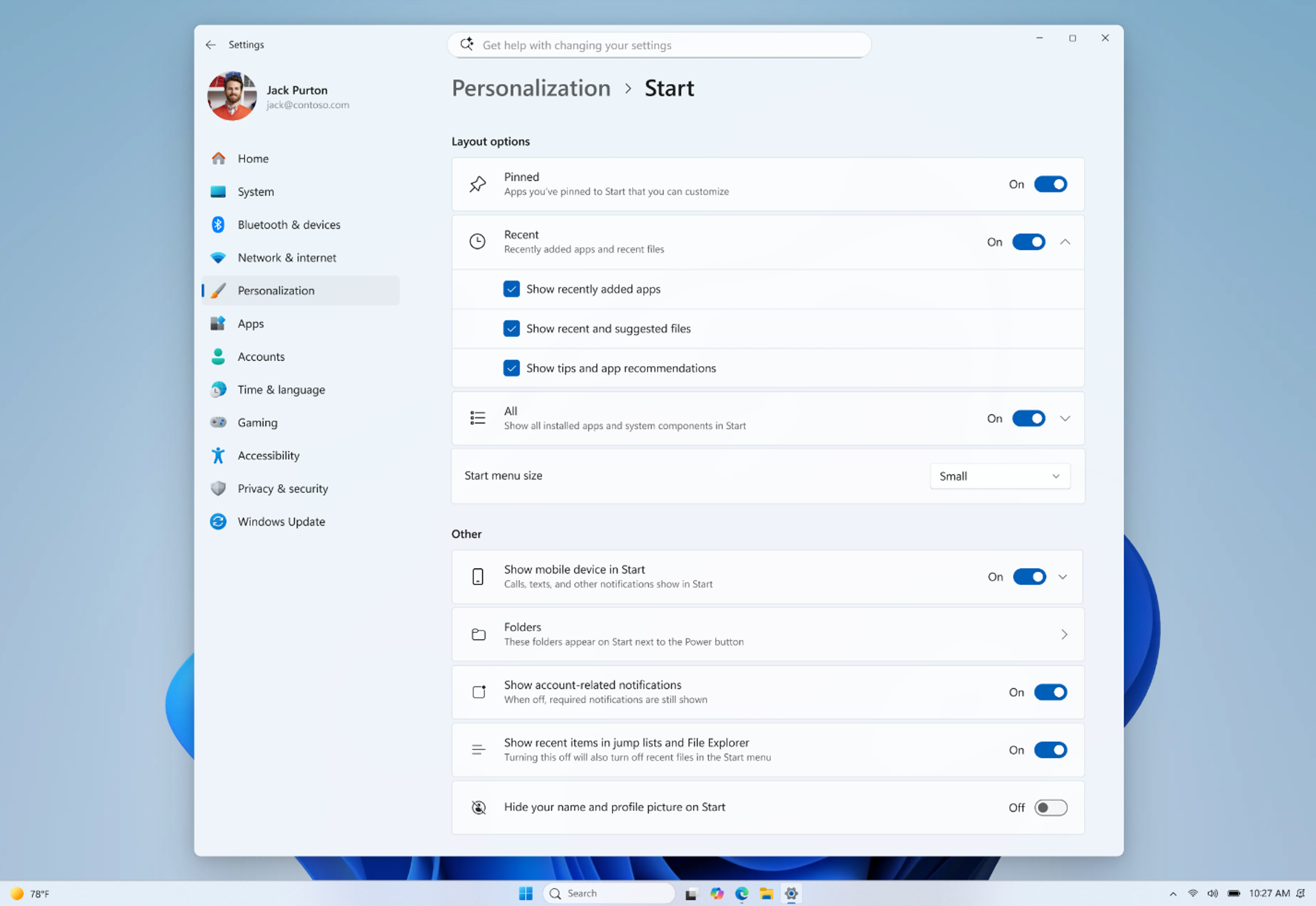
There’s a new “small” Start menu option that makes it a bit easier for us to have control, but it’s still not enough when compared to manual resize controls in Windows 10.
Recommended feed is becoming ‘Recent’ and getting better
Microsoft is finally giving up on the ‘Recommended’ feed and renaming it to ‘Recent,’ which means the Start menu might finally stop promoting apps. Right now, the Recommended feed is also used to run advertisements for third-party apps, such as WhatsApp. In fact, some of us had spotted Opera browser ads in the recommended feed a few years ago.
The fact that the Recommended section is becoming ‘Recent’ confirms that ads are going away, and another piece of good news is that Microsoft is improving file relevancy. This means the Recent section might actually be useful. While the Recommended feed never served a purpose, Recent might actually do the job.
It’ll correctly display your recently installed apps and show more relevant items based on how frequently you open a file.
“We are refining which files appear and how they are ordered to reduce less relevant items and better reflect what you have been working on,” Microsoft noted.
Recommended feed is no longer tied to File Explorer’s recent files and jump list recent items
Previously, if you disabled the Recommended feed in the Start menu, it also turned off Recent in File Explorer and taskbar jump lists (right-click).
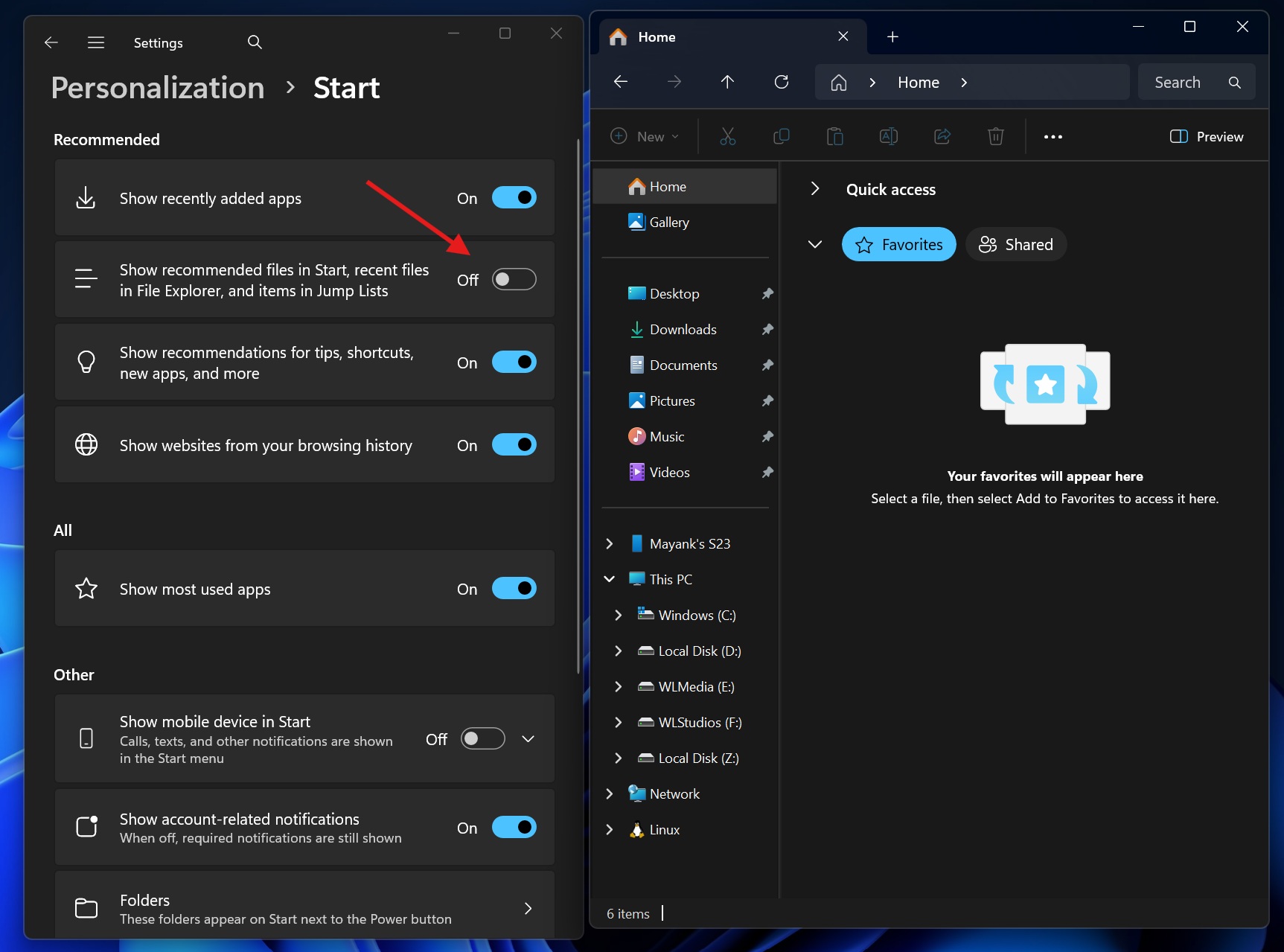
Now, Microsoft is adding a separate control for turning the recommended/recent section in the Start menu on or off. File Explorer, taskbar jump lists, and other places that rely on the ‘recent’ feature will not be affected when you disable file recommendations in Start.
You can now toggle on or off any section in the new Start menu
Windows 11 is also testing section-level toggles, so you can turn off “Pinned” and “Recent” and just have a list of apps installed on the system. If the list feels overwhelming, you can toggle off the “Recent” and “All apps” sections and just have your pinned apps.
Microsoft calls the idea “section-level toggles,” which, according to the company, lets you focus on what truly matters to you.
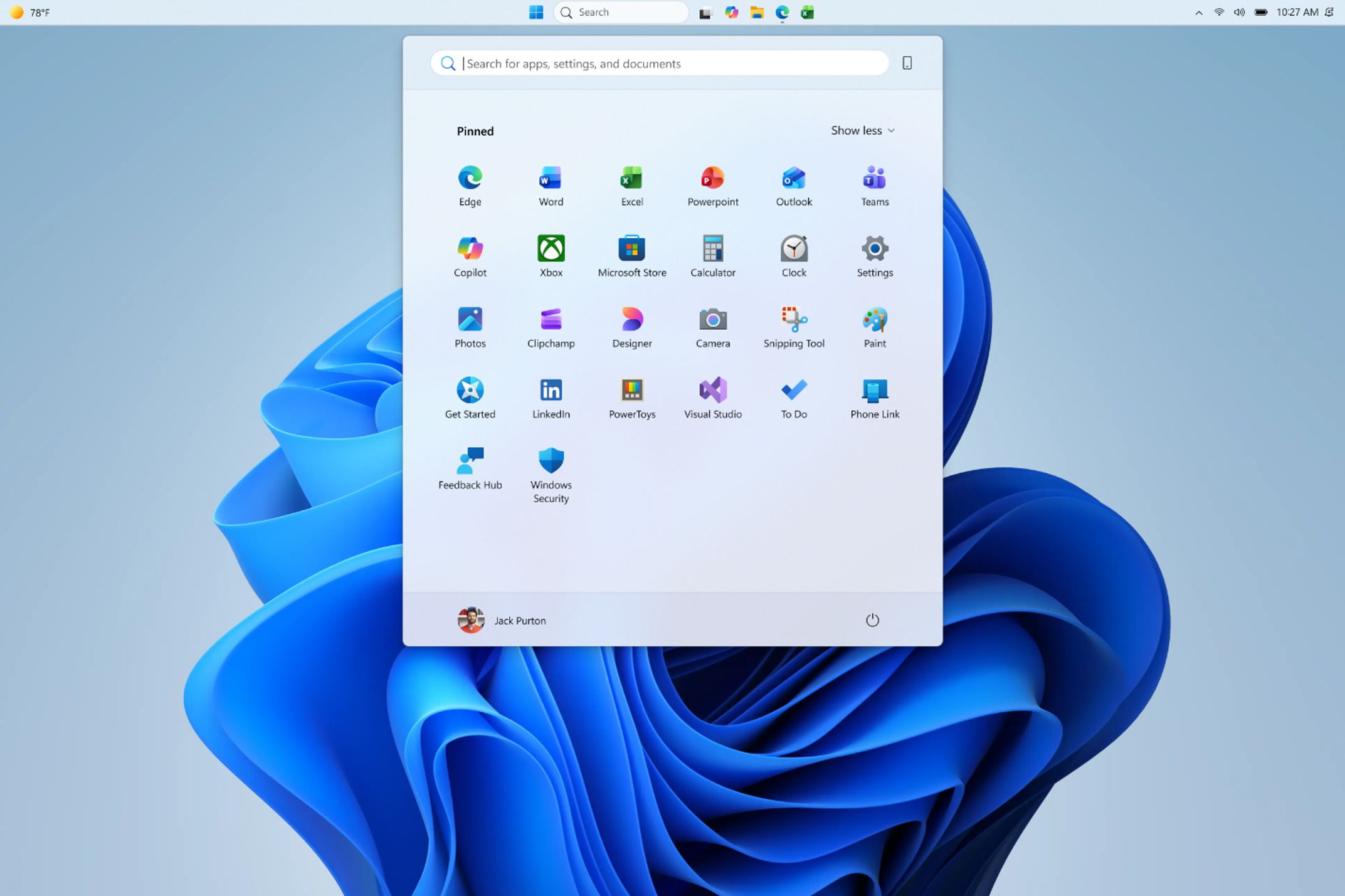
You can now hide the name and profile picture in the Start menu
Microsoft is decluttering the Start menu with a new feature that lets you hide your name and profile picture.
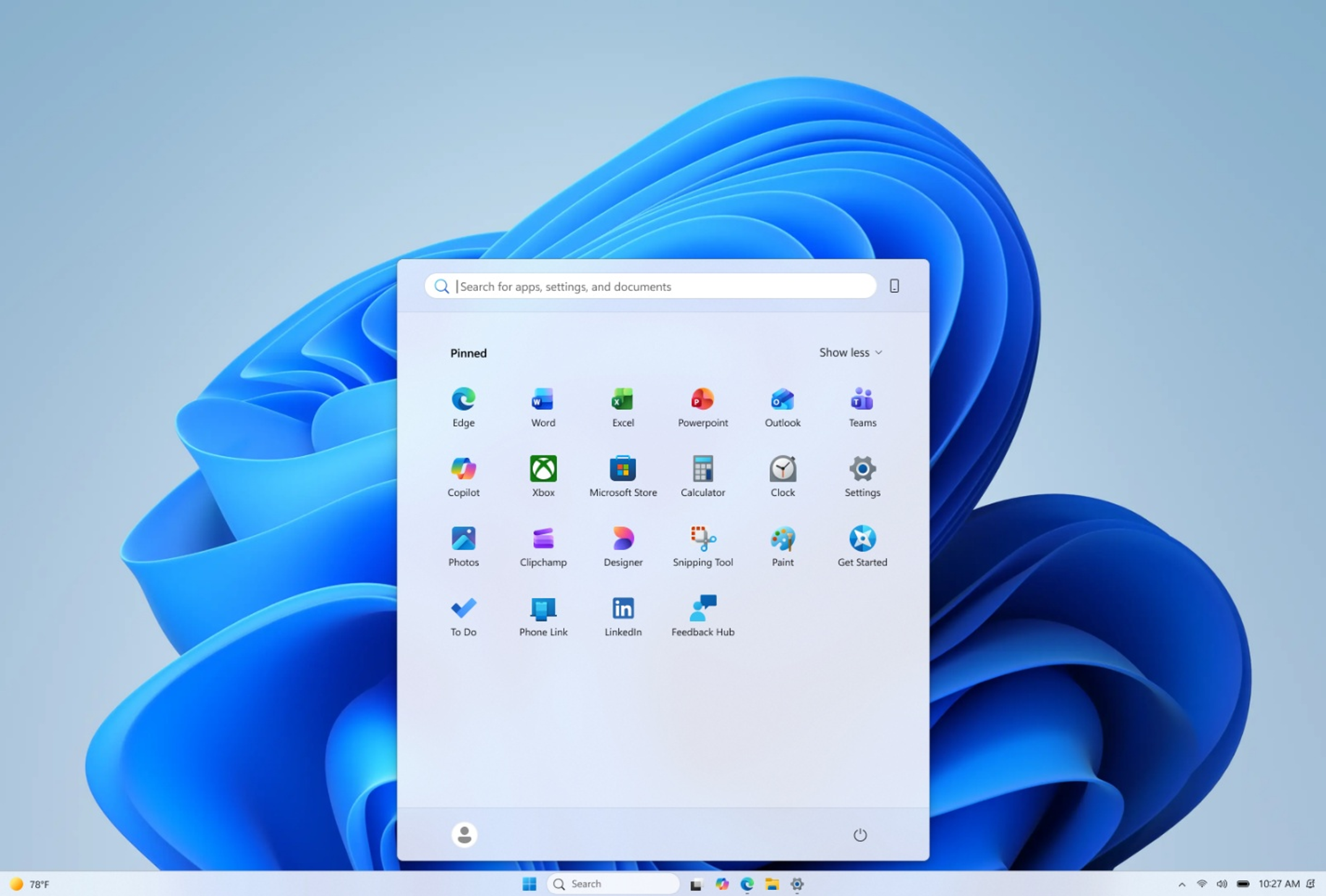
The company argues that this feature is particularly handy when you want to protect your identity during a live stream, screen share, or presentation.
The post Microsoft is testing different Windows 11 taskbar positions per monitor and new Start menu controls appeared first on Windows Latest
“}]]
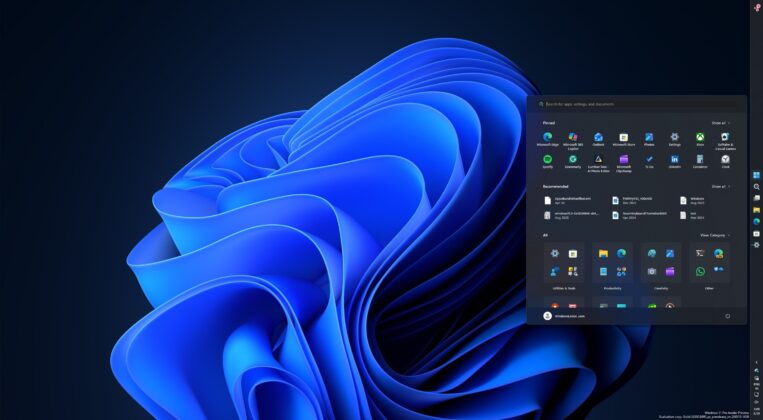 [[{“value”:”Windows 11 plans to let you configure different taskbar positions per monitor and add multiple new features to the Start menu.
The post Microsoft is testing different Windows 11 taskbar positions per monitor and new Start menu controls appeared first on Windows Latest”}]] Read More Windows Latest